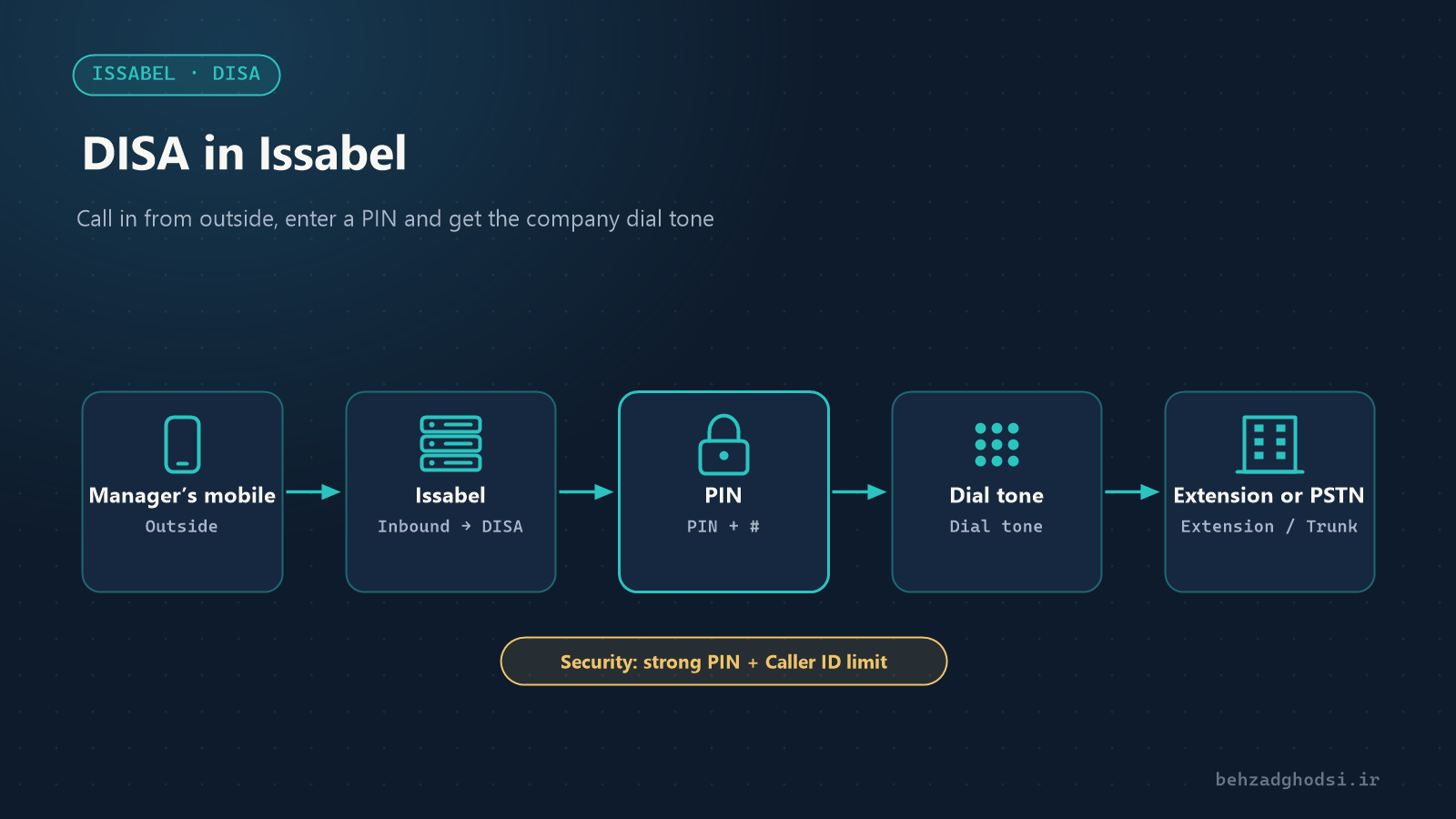
DISA stands for Direct Inward System Access. With DISA, when you are away from the office you call one of the company lines, enter a PIN and hear the phone system’s dial tone. From then on you can call other extensions, or call out through the company lines, just like an internal extension.
What is DISA used for?
- Calling extensions from outside: a travelling manager talks directly to a colleague’s extension without going through reception.
- Outbound calls on the company line: business calls are made with the company number and at the company’s line rates.
- Combined with Callback: the phone system calls you, then DISA gives you a dial tone; the company pays for the call.
First of all: take DISA’s security risk seriously
DISA is effectively a front door to your lines. If the PIN is weak or access is not restricted, anyone who guesses it can make expensive calls, even international ones, at your cost. This kind of abuse is called toll fraud and it is one of the most common attacks on phone systems. So keep these principles in mind from the start:
- A long, unguessable PIN: at least 6 to 8 digits, never
1234or an extension number. - Limit DISA access to the routes that are really needed.
- If possible, allow only specific numbers to use DISA.
- Review the call records (CDR) regularly.
Creating DISA step by step
From the PBX menu open PBX Configuration and choose DISA. Click Add DISA.
- DISA name: a descriptive name, for example “Managers’ access”.
- PIN: the PIN the user must enter. For several users you can separate several PINs with commas, so each person has their own.
- Response Timeout: how many seconds the system waits for dialling to start.
- Digit Timeout: the maximum time between two digits.
- Require Confirmation: the user must press # before being asked for the PIN. This keeps accidental calls and faxes away from DISA.
- Caller ID: if set, outbound calls are made with this Caller ID.
- Context: the most important security setting; it decides which routes a DISA user can reach. The default
from-internalmeans the same access as an ordinary extension, including every Outbound Route. - Allow Hangup: when enabled, the user can press
**to end the current call and get a new dial tone for the next number.
Finally click Submit and then Apply Config.
Connecting DISA to an incoming line
DISA must be the destination of an inbound route. Open Inbound Routes and create a route for the line you want to reach DISA on:
- DID Number: the line you have set aside for DISA.
- Caller ID Number: if you fill this with the manager’s mobile number, only calls from that number reach DISA. For several people, create one Inbound Route per number.
- Set Destination: choose DISA and then the DISA you created.
This way, even someone who knows the PIN cannot reach DISA from a number that is not allowed. Caller ID can be spoofed, though, so this is not a replacement for a strong PIN; it is an extra layer of protection.
Restricting access with the context
If DISA is only needed for calling extensions, do not allow outside calls through it. Common approaches:
- In Outbound Routes, set a Route Password on expensive routes (international and mobile) so they ask for a separate password even via DISA.
- If you do not need the international route, disable it completely.
- For advanced users: create a custom context that only reaches extensions and enter it in the Context field.
Using DISA as a user
- Call the DISA number.
- If Require Confirmation is on, press #.
- Enter the PIN and press #.
- You hear the phone system’s dial tone; dial an extension or an outside number.
- If Allow Hangup is on, press
**to end the call and dial the next number.
If it does not work
- The call drops after entering the PIN: the PIN is wrong, or # was not pressed after it.
- You get a dial tone but outside numbers do not connect: the Outbound Route does not match the number pattern, or the context does not allow that route.
- DISA does not answer: check the Inbound Route; the DID or Caller ID does not match the incoming call.
- Suspicious calls in the reports: change the PIN immediately, disable DISA and review the CDR.
DISA is a powerful tool that makes life much easier for mobile teams, provided it is set up securely: a strong PIN, Caller ID restriction, limited access and regular review of the reports. If you only need to call extensions from outside, close outbound access completely.