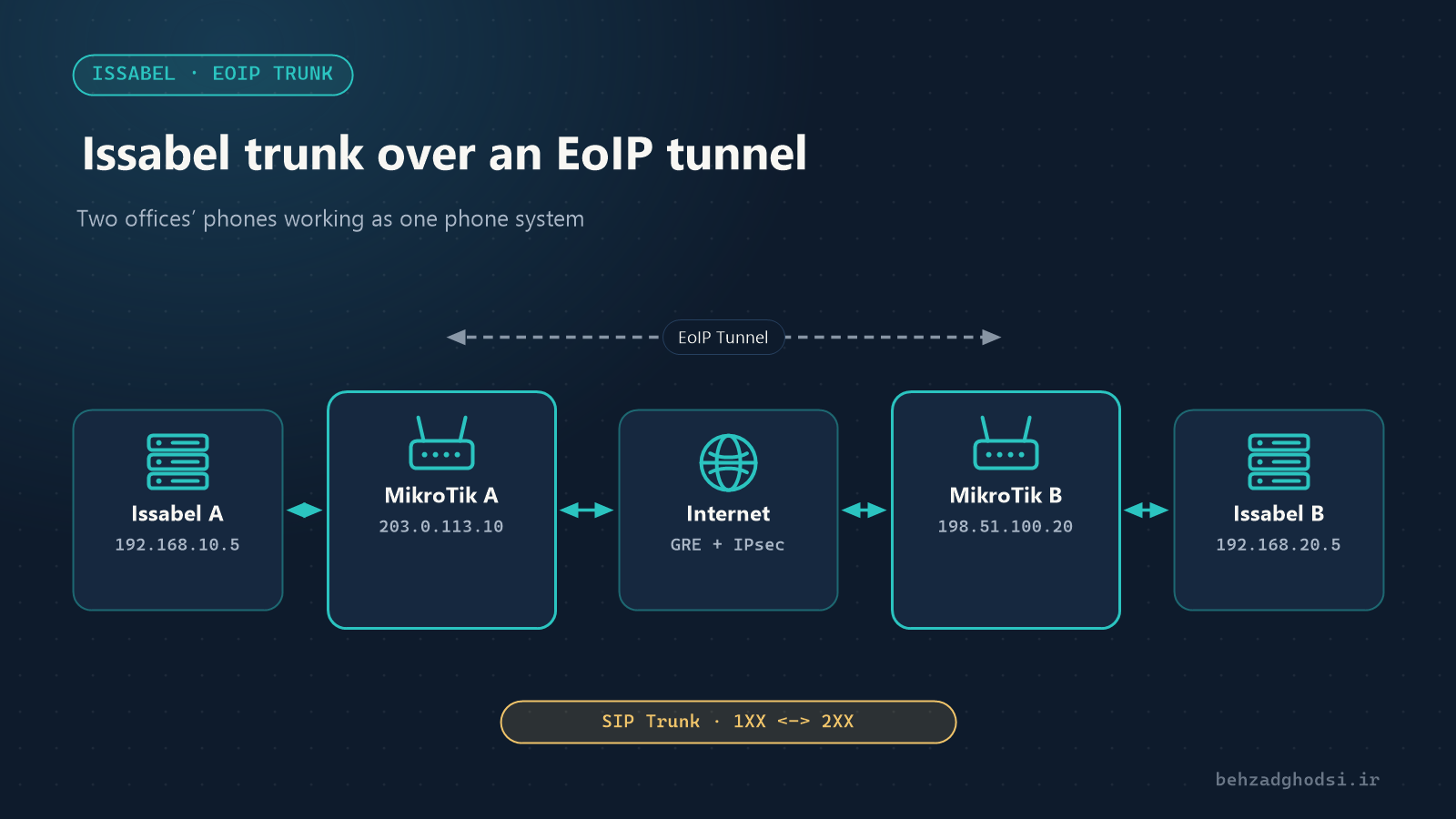
A company with offices in two cities usually has an Issabel phone system and a MikroTik router in each office. For colleagues in the two offices to call each other by extension number, with no carrier charges, two things are needed: a secure network link between the offices and a trunk between the two Issabel servers.
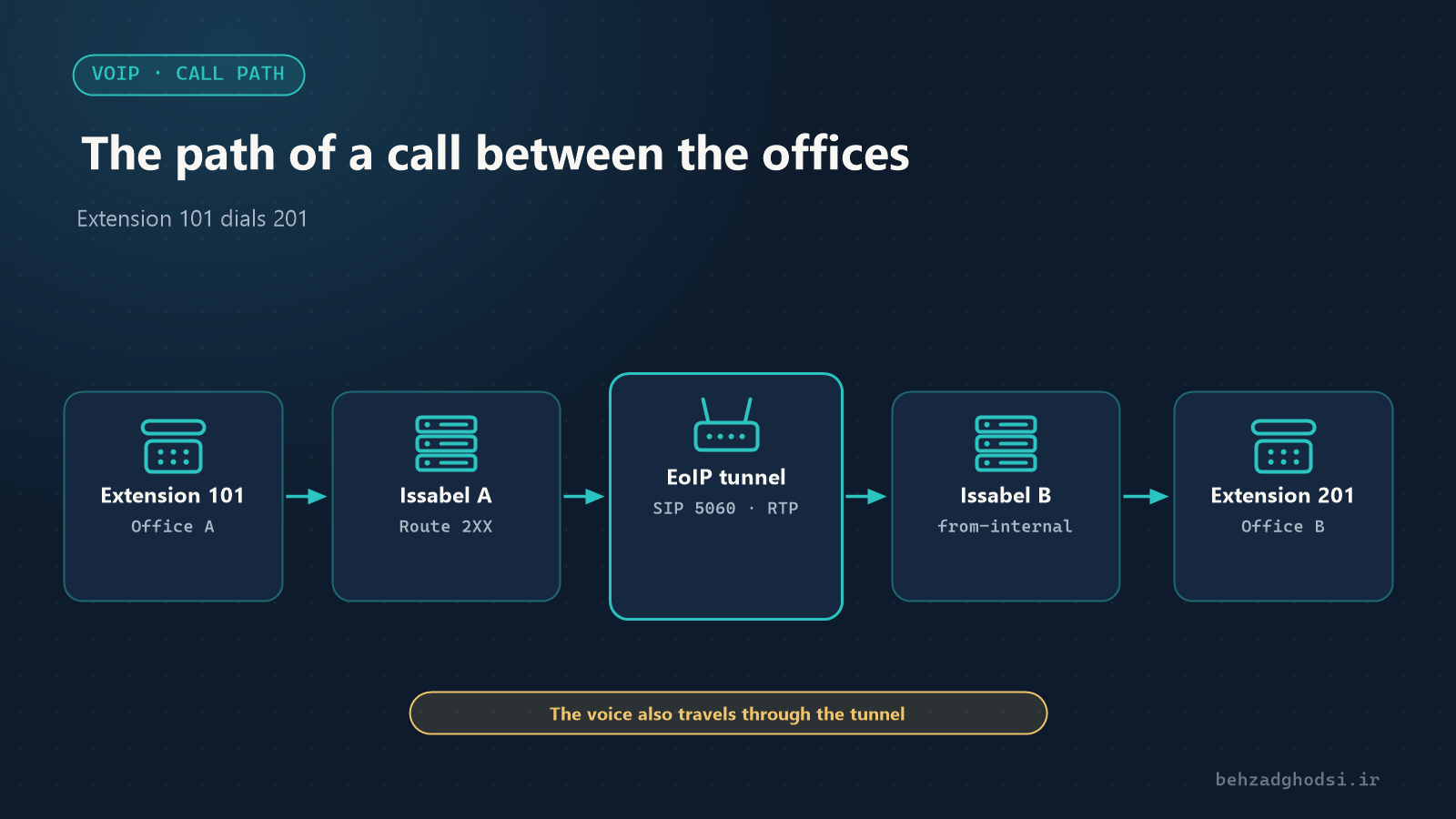
In this article we build the network link with a MikroTik EoIP tunnel and run a SIP trunk between the two Issabel servers over it. The commands are written for RouterOS 7 and Issabel 4.
The scenario
- Office A: MikroTik with public address
203.0.113.10, internal network192.168.10.0/24, Issabel at192.168.10.5, extensions1XX - Office B: MikroTik with public address
198.51.100.20, internal network192.168.20.0/24, Issabel at192.168.20.5, extensions2XX
The addresses are examples. Keep two conditions in mind from the start:
- The two internal networks must not use the same address range.
- The extension numbers in the two offices must not overlap, for example office A uses 101 to 199 and office B 201 to 299.
Why EoIP?
EoIP (Ethernet over IP) is MikroTik’s own tunnel, creating a virtual Ethernet interface between two routers. It is simple to set up, and one setting adds IPsec encryption. It has two limitations:
- Both ends must be MikroTik.
- Both routers need a static public address.
If one end is not MikroTik, use IPsec; IPsec tunnel between MikroTik and Cisco explains how.
Bridged or routed?
EoIP can be used in two ways:
- Bridged: you bridge the tunnel with the internal network and the two offices become one layer 2 network. It looks simple, but broadcasts and DHCP from both offices cross the tunnel, and any problem in one office spreads to the other.
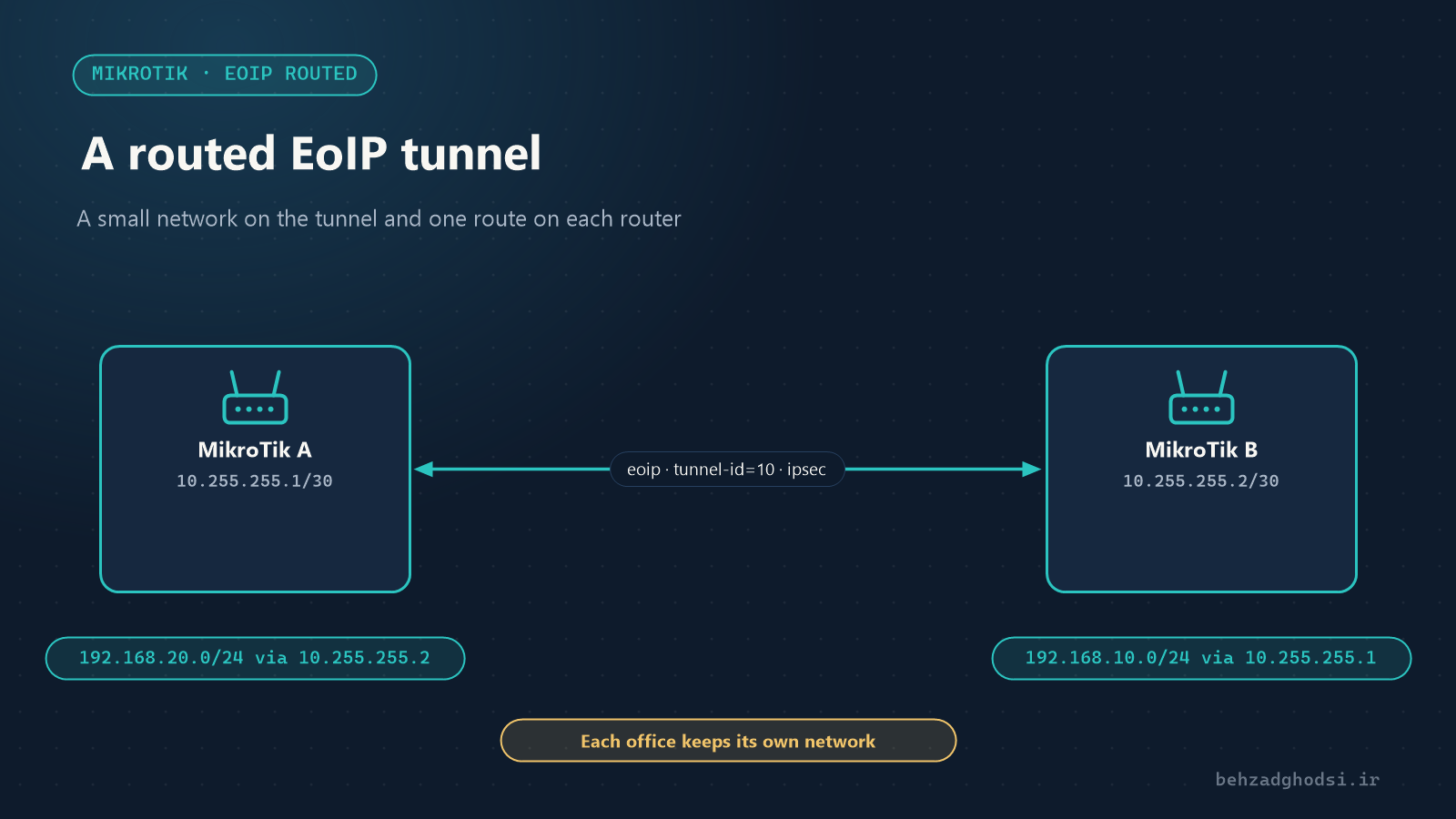
- Routed: you give the two ends of the tunnel addresses and route between the two networks. Each office keeps its own network and only the traffic that needs to cross the tunnel does.
For a trunk between two Issabel servers, the routed approach is more stable and easier to control, and this article follows it.
Part one: the EoIP tunnel between the two MikroTiks
1. Create the tunnel
On MikroTik A:
/interface eoip add name=eoip-office-b local-address=203.0.113.10 remote-address=198.51.100.20 tunnel-id=10 ipsec-secret="Str0ng-Tunnel-Key" allow-fast-path=no keepalive=10s,5On MikroTik B:
/interface eoip add name=eoip-office-a local-address=198.51.100.20 remote-address=203.0.113.10 tunnel-id=10 ipsec-secret="Str0ng-Tunnel-Key" allow-fast-path=no keepalive=10s,5A few points:
- tunnel-id must be the same on both sides.
- ipsec-secret encrypts the tunnel and must be identical on both sides. Without it, calls cross the internet unencrypted. Use your own key, not this article’s example.
- When
ipsec-secretis set,allow-fast-pathmust beno. - keepalive takes the interface out of the running state if the other side is unreachable.
In Winbox these settings are under Interfaces → EoIP Tunnel.
2. Address the two ends of the tunnel
We set aside a small /30 network just for the tunnel.
MikroTik A:
/ip address add address=10.255.255.1/30 interface=eoip-office-b comment="EoIP to office B"MikroTik B:
/ip address add address=10.255.255.2/30 interface=eoip-office-a comment="EoIP to office A"3. A route to the other office’s network
MikroTik A:
/ip route add dst-address=192.168.20.0/24 gateway=10.255.255.2 comment="Office B LAN"MikroTik B:
/ip route add dst-address=192.168.10.0/24 gateway=10.255.255.1 comment="Office A LAN"4. Router firewall
Allow the other router to establish the tunnel. Place these rules above the drop rule in the input chain.
MikroTik A (the same rules on B, with the address 203.0.113.10):
/ip firewall filter add chain=input action=accept protocol=udp dst-port=500,4500 src-address=198.51.100.20 comment="IKE from office B"
/ip firewall filter add chain=input action=accept protocol=ipsec-esp src-address=198.51.100.20 comment="ESP from office B"
/ip firewall filter add chain=input action=accept protocol=gre src-address=198.51.100.20 comment="EoIP from office B"
Traffic between the offices leaves through the tunnel interface, not the internet interface, so if your masquerade rule uses out-interface-list=WAN no NAT bypass is needed. If your masquerade has no outgoing interface, restrict it to the internet interface.
5. Disable the SIP helper
MikroTik’s SIP ALG sometimes rewrites SIP packets and causes one-way audio or dropped calls. Disable it on both routers:
/ip firewall service-port disable sip6. Test the tunnel
/interface eoip print
/ip ipsec active-peers print
/ping 10.255.255.2
/ping 192.168.20.5 src-address=192.168.10.1
In the eoip print output the interface should have the R (running) flag, and in active-peers the state should be established. Do not move on to the trunk until the other Issabel answers ping.
Part two: the SIP trunk between the two Issabel servers
1. Tell Issabel about the other office’s network
If Issabel has a public address (External IP) set for a SIP provider or public line, you must declare the other office’s network as a local network; otherwise Issabel sends the public address there too and the audio becomes one-way.
In PBX → PBX Configuration → Asterisk SIP Settings, under Local Networks:
- On Issabel A: add
192.168.20.0 / 255.255.255.0. - On Issabel B: add
192.168.10.0 / 255.255.255.0.
2. Create the trunk on Issabel A
Under PBX → PBX Configuration → Trunks, click Add SIP Trunk.
- Trunk Name:
to-office-b - Outbound CallerID: leave empty so the caller’s extension number reaches the other side.
Under Outgoing Settings:
- Trunk Name:
office-b - PEER Details:
host=192.168.20.5
type=friend
context=from-internal
qualify=yes
insecure=port,invite
nat=no
dtmfmode=rfc2833
disallow=all
allow=alaw&ulaw
deny=0.0.0.0/0.0.0.0
permit=192.168.20.5/255.255.255.255
Leave Incoming Settings and the Register String empty and click Submit.
3. Create the trunk on Issabel B
The same, with the name and address reversed:
- Trunk Name:
to-office-a - Outgoing Settings → Trunk Name:
office-a - PEER Details:
host=192.168.10.5
type=friend
context=from-internal
qualify=yes
insecure=port,invite
nat=no
dtmfmode=rfc2833
disallow=all
allow=alaw&ulaw
deny=0.0.0.0/0.0.0.0
permit=192.168.10.5/255.255.255.255
This trunk recognises the other side by its IP address, not by username and password. The deny and permit lines make sure only the other office’s Issabel server can use the trunk.
4. The outbound route
On Issabel A, create a route under Outbound Routes:
- Route Name:
to-office-b - Dial Patterns:
2XXin the match pattern field - Trunk Sequence: the
to-office-btrunk
On Issabel B, create a route with the pattern 1XX and the to-office-a trunk.
Place this route above the public-line routes in the list, and finally click Apply Config on both servers.
5. The Issabel firewall
If the Issabel firewall (Security → Firewall) is active, allow these two only for the other Issabel’s address:
- SIP: port
UDP 5060 - RTP (audio): ports
UDP 10000to20000
Testing
Open the Asterisk console on each server:
asterisk -rvvvCheck the trunk status:
sip show peersoffice-b should show OK and a response time in milliseconds. Now dial 201 from extension 101, and then the other way round. In both directions, check that both sides can hear each other.
If it does not work
- The trunk is UNREACHABLE: first ping
192.168.20.5from Issabel A’s command line. If it does not answer, the problem is the tunnel or routing, not Issabel. - The call connects but the audio is one-way or missing: the other office’s network is not in Local Networks, the RTP ports are closed in the firewall, or the MikroTik SIP helper is still on.
- The call drops after about 30 seconds: usually the ACK packet does not reach its destination; check the same three points.
- Calls are not sent to the trunk: check the Outbound Route pattern and make sure no route with a broader pattern sits above it.
- The tunnel is not running: compare
tunnel-idandipsec-secreton both sides and make sure GRE and UDP ports 500 and 4500 are not blocked along the way. - The audio is choppy: the internet bandwidth or quality is not enough; see the next section.
To see the details of a call in the Asterisk console:
sip set debug peer office-b
rtp set debug on
When you are done, turn them off with sip set debug off and rtp set debug off.
Bandwidth and call quality
Each call with the G.711 (alaw) codec uses about 80 kbps in each direction, and with tunnel and encryption overhead it reaches about 120 kbps. For 10 simultaneous calls, set aside about 1.2 Mbps in each direction.
- If the offices’ internet is also used for other things, give the traffic between the two Issabel servers priority on the MikroTik so users’ downloads do not ruin the audio.
- Latency over 150 ms and high jitter lower call quality even with enough bandwidth. Measure the link’s stability with a long ping between the two Issabel servers.
Security tips
- Never run the tunnel without
ipsec-secret; EoIP on its own is not encrypted. context=from-internalmeans calls from the other office have the same access as local extensions, including public lines. That is common for two offices of one organisation, but if you do not want the other office to use your public lines, create a more restricted context.- Do not expose Issabel’s SIP port to the internet; the trunk only works through the tunnel.
- After the set-up, back up both routers.
An encrypted EoIP tunnel with two addresses and two routes connects the two networks; one SIP trunk and one Outbound Route on each Issabel connect the two offices’ internal calls. The order matters: first the tunnel and ping, then the trunk. If you prefer to build the trunk with IAX2, see Trunk between two Issabel servers.