The switch password has been forgotten, the previous engineer left without handing it over, or you bought a second-hand switch. In none of these cases do you need a full factory reset. Cisco Catalyst switches have a password recovery procedure that changes the password while the current configuration stays intact.
The idea behind it
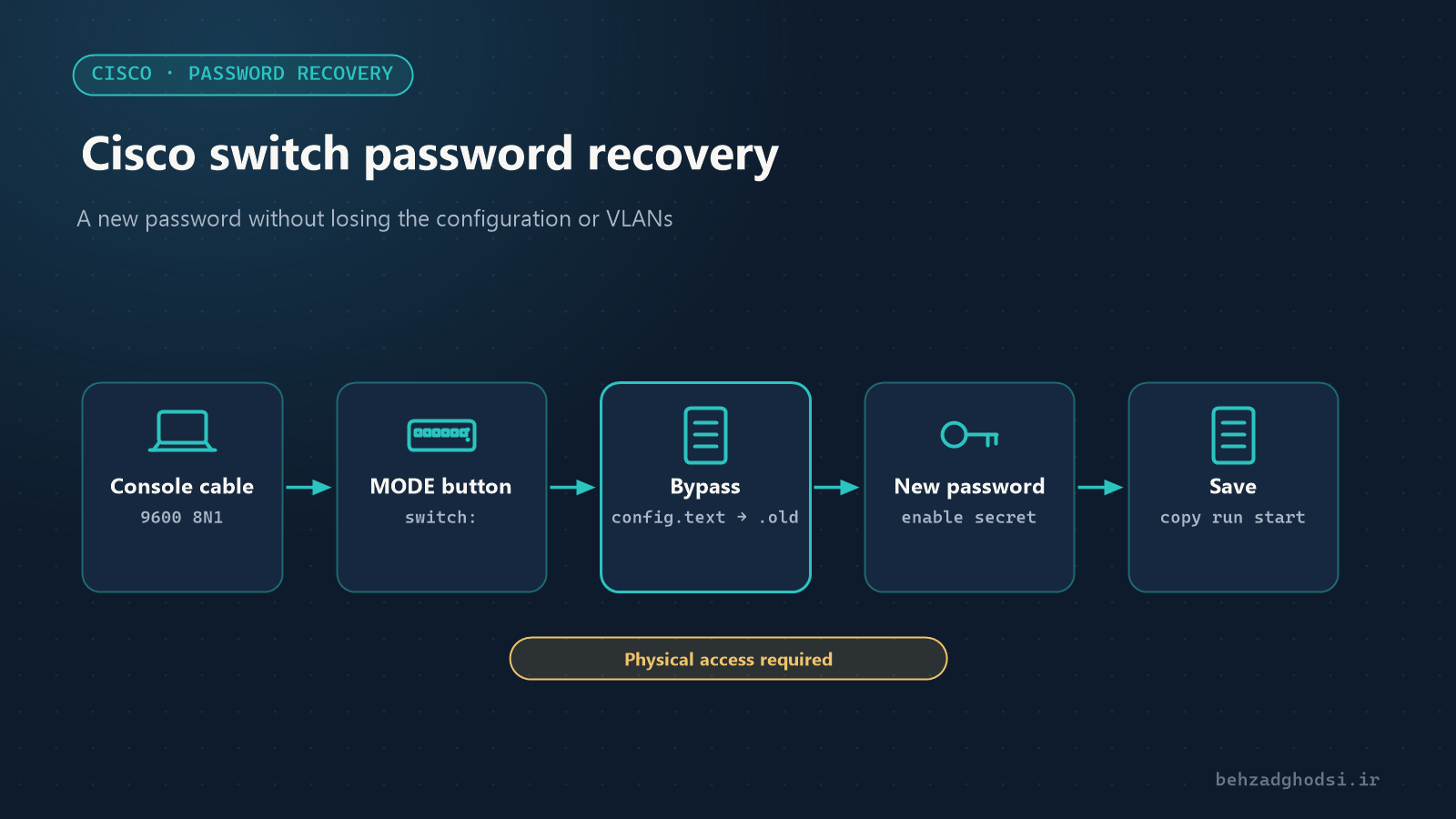
At boot, the switch reads its configuration from the config.text file in flash. In the recovery procedure:
- We boot the switch so that it stops in boot mode (
switch:) instead of starting normally. - We rename the configuration file, so the switch starts with no password and no settings.
- Once inside, we put the configuration back, set a new password and save.
The procedure requires physical access to the switch; it cannot be done remotely, and that is deliberately a security layer.
What you need
- A Cisco console cable (RJ45 to serial, or USB to RJ45), or the USB console port on newer models.
- A terminal program such as PuTTY or SecureCRT.
- Serial settings:
9600baud,8data bits, no parity,1stop bit, no flow control. - A short maintenance window; the switch restarts during the procedure.
Step 1: get into boot mode
- Connect the console cable and open the terminal window.
- Unplug the switch’s power cable.
- Hold the MODE button on the front of the switch and plug the power back in.
- Keep holding for about 15 seconds until the SYST LED changes colour, then release.
In the terminal you should see a message like this, ending with the switch: prompt:
The system has been interrupted prior to initializing the flash filesystem.
...
switch:
Step 2: set the configuration file aside
Initialise flash and list its contents:
switch: flash_init
switch: dir flash:
On some older models you also need to run load_helper before dir.
The config.text file should be in the list. Rename it and boot the switch:
switch: rename flash:config.text flash:config.old
switch: boot
Leave the vlan.dat file alone; it holds the VLAN information.
Step 3: log in without a password and restore the configuration
The switch starts without settings and asks whether you want to enter the initial configuration dialog. Answer no.
Would you like to enter the initial configuration dialog? [yes/no]: no
Switch> enable
Switch# rename flash:config.old flash:config.text
Switch# copy flash:config.text system:running-config
The last command loads the previous configuration into running memory. The hostname returns to the old name and you are inside without a password.
Step 4: set new passwords
SW1# configure terminal
SW1(config)# enable secret N3w-Str0ng-Pass
SW1(config)# username admin privilege 15 secret N3w-Adm1n-Pass
SW1(config)# line console 0
SW1(config-line)# password N3w-C0nsole-Pass
SW1(config-line)# login
SW1(config-line)# exit
SW1(config)# line vty 0 15
SW1(config-line)# login local
SW1(config-line)# end
If the configuration also had a vty password or other users, change those now as well.
Step 5: check the interfaces and save
Copying the configuration into running-config sometimes leaves some interfaces, especially interface vlan, in the shutdown state. Check them:
SW1# show ip interface brief
SW1# configure terminal
SW1(config)# interface vlan 1
SW1(config-if)# no shutdown
SW1(config-if)# end
Always save at the end; otherwise the next restart leaves you without a password again:
SW1# copy running-config startup-configIf password recovery is disabled
If no service password-recovery has been configured on the switch, holding the MODE button does not take you to switch:. The switch only offers to erase the whole configuration and start with factory settings. The configuration is lost in that case, so before anything else make sure you have a configuration backup somewhere else.
Catalyst 9000 series switches
On newer IOS-XE switches such as the Catalyst 9200 and 9300, once you reach switch: you set a variable that tells the switch to ignore its configuration, instead of renaming the file:
switch: SWITCH_IGNORE_STARTUP_CFG=1
switch: boot
After logging in, load the configuration and change the password as before. Then turn the setting back off and save:
Switch# copy startup-config running-config
Switch# configure terminal
Switch(config)# no system ignore startupconfig switch all
Switch(config)# end
Switch# copy running-config startup-config
The details vary between models and releases; check Cisco’s official guide for your model before you start.
Security tips after recovery
- Use
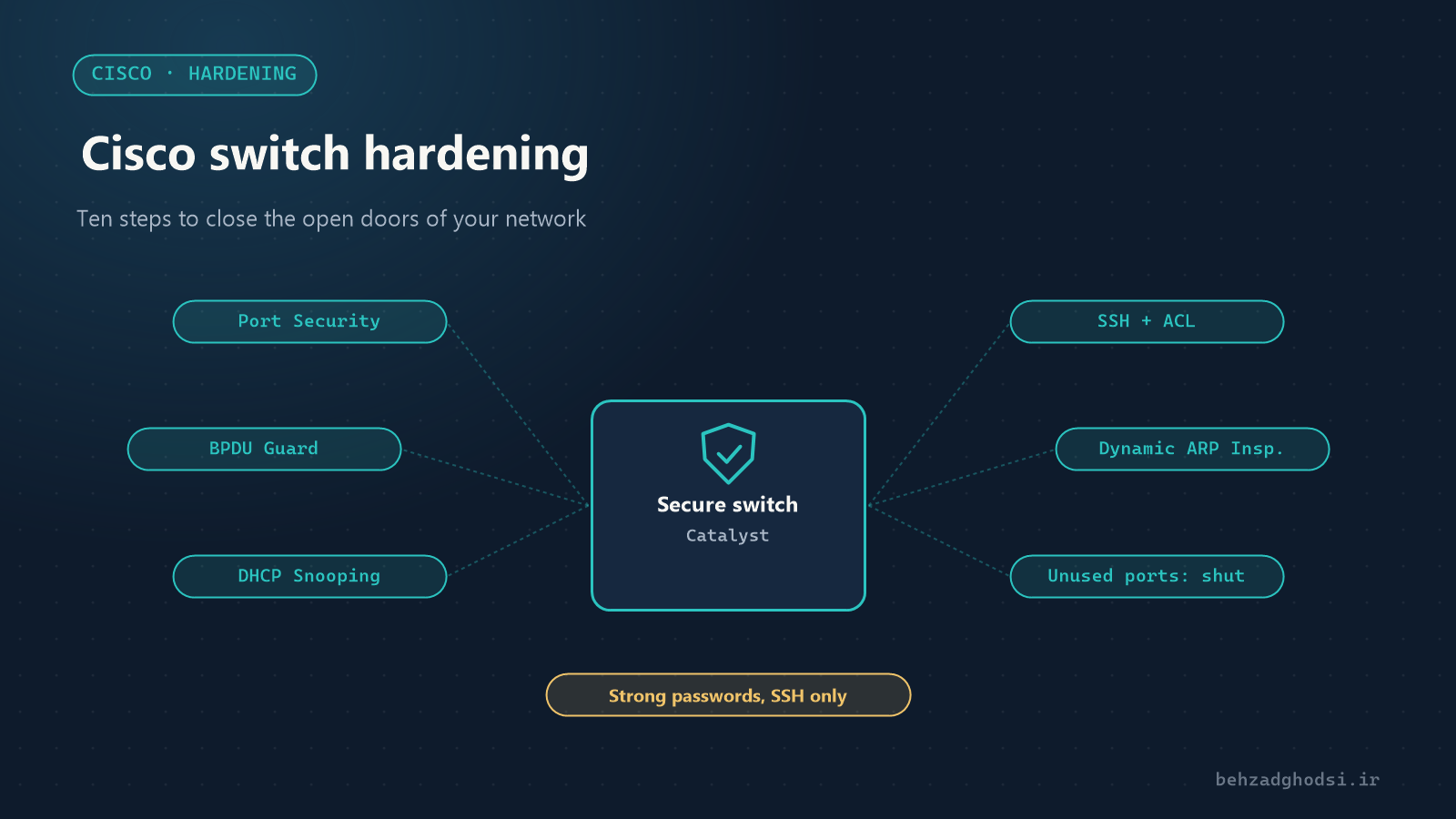
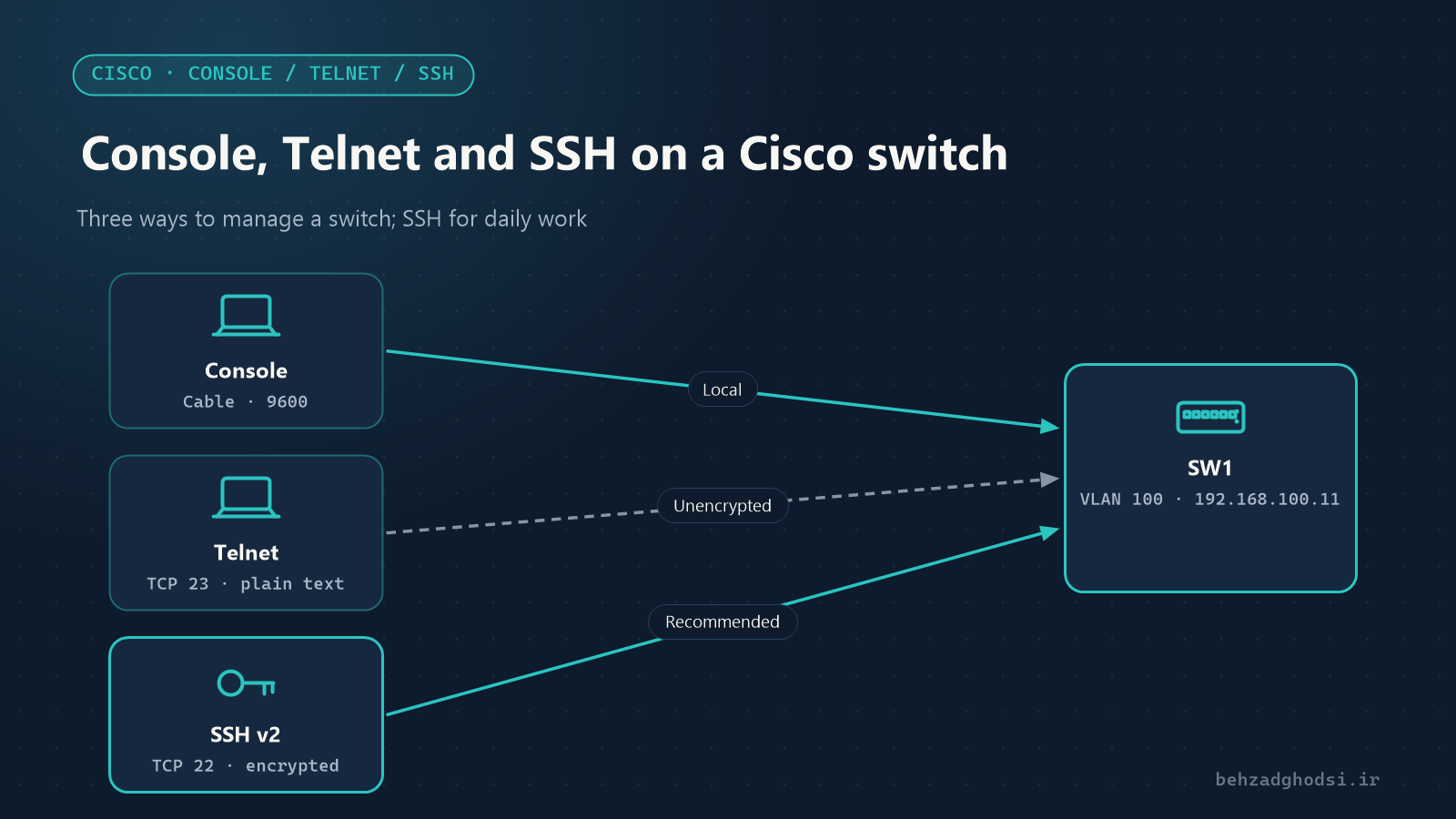
enable secret, notenable password; the former is stored as a hash. - Limit management access to SSH and disable Telnet.
- Keep the switch in a locked rack; anyone with a console cable and access to the MODE button can do exactly what you just did.
- Store the passwords in a secure company password manager so they are not lost again.
Recovering a Cisco switch password takes physical access and about ten minutes, and the configuration and VLANs stay intact. Avoid the two common mistakes: forgetting copy running-config startup-config at the end, and not bringing back up the interfaces left in shutdown.