The HP ProLiant DL380 Gen9 still runs in many companies and data centres, including the Karzan Novavaran Honar va Memari project, where an HP G9 server was set up with ESXi. One job that is often done wrong on these servers is a memory upgrade: modules go into whichever slots are empty. The result is an error at boot, memory running slower than it should, or capacity that is not available.
This article explains the memory population rules for the DL380 Gen9, based on HPE’s QuickSpecs and documentation.
Memory architecture of the DL380 Gen9
- The server has two processor sockets (Intel Xeon E5-2600 v3 and v4 families).
- Each processor has 4 memory channels and each channel 3 slots: 12 slots per processor and 24 slots in total.
- With only one processor installed, only that processor’s 12 slots can be used. Never put memory in the slots of a processor that is not installed.
- The white slots are the first slot of each channel. With one DIMM per channel, populate the white slots only.
- The memory is DDR4, either Registered (RDIMM) or Load Reduced (LRDIMM).
Installation order: alphabetical
Next to each slot on the board is a letter (A to L). HPE says to install DIMMs in alphabetical order: A first, then B, then C, and so on up to L.
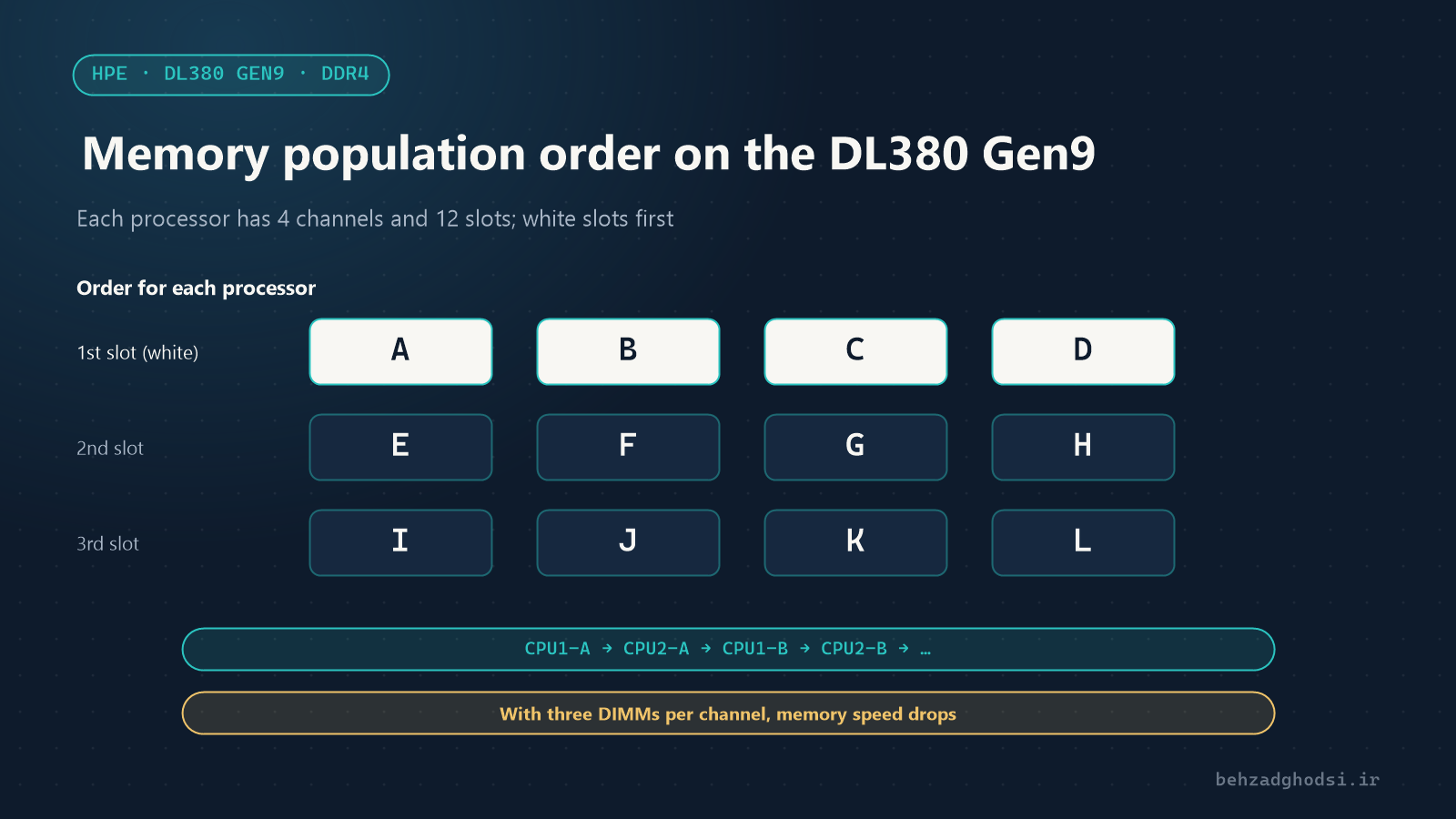
The diagram is conceptual. For the physical position of each letter, see the label inside the server’s access panel; HPE prints the DIMM slot map there.
One processor
The order is simple: A, B, C, D, E, F and so on. Common cases:
- 4 DIMMs: slots A to D, one DIMM per channel, all in white slots. The best layout for 4 DIMMs.
- 8 DIMMs: slots A to H, two DIMMs per channel.
- 12 DIMMs: all slots, three per channel. More capacity, but memory speed drops (explained below).
Two processors
Memory must be balanced between the two processors. HPE’s order alternates:
CPU1-A, CPU2-A, CPU1-B, CPU2-B, CPU1-C, CPU2-C, ...For example, with 8 DIMMs: 4 on the first processor in slots A to D and 4 on the second processor in slots A to D. If all 8 go on the first processor, the second processor has to reach memory over the slower link between the two processors.
Rule of thumb for best performance: use a multiple of 4 DIMMs per processor (a multiple of 8 in a two-processor server) so all channels are filled equally. HPE also recommends balancing capacity between processors and loading channels similarly where possible.
What decides memory speed?
The final memory speed depends on three things: the processor model, the type of DIMM and the number of DIMMs per channel. According to HPE’s specifications for E5-2600 v3 processors and DDR4-2133 DIMMs:
- One or two DIMMs per channel: 2133 MT/s
- Three DIMMs per channel: 1600 MT/s
The processor model also sets a limit. In the v3 family, for example, the E5-2603 v3 and E5-2609 v3 run memory at up to 1600, and the E5-2620 v3 to E5-2640 v3 at up to 1866, so 2133 memory runs slower on those processors. Servers with v4 processors also support DDR4-2400 memory; for your exact combination, use HPE’s memory configuration tool (Memory Configurator).
In practice: if you can reach the capacity you need with 8 DIMMs per processor (two per channel), that is usually better than filling all 12 slots with smaller DIMMs.
Rules for mixing DIMMs
These rules come from HPE’s DL380 Gen9 specifications:
- Do not mix RDIMMs and LRDIMMs. They are different technologies and are not supported together in one server.
- Heavier DIMMs further from the processor: within a channel, the DIMM with more ranks (for example quad-rank) goes furthest from the processor and the lighter one (single-rank) closer.
- Different speeds: DIMMs of different speeds can be mixed, but the server runs them all at one common speed, the slowest.
- Previous-generation memory: memory from earlier HP server generations (Gen8 and older) is not compatible with Gen9.
- HPE SmartMemory: for the full feature set, HPE recommends its own SmartMemory. Non-HPE DIMMs may work but miss some features, and the server may warn about them at boot.
- Minimum: at least one DIMM is needed for the server to start.
Practical advice: use one memory model per server (one capacity, one rank, one speed). Upgrading with mismatched DIMMs is the most common cause of strange memory problems.
Memory protection modes
The DL380 Gen9 offers several memory protection modes, selected in the BIOS:
- Advanced ECC: the default. Detects and corrects single-bit and multi-bit errors within one DRAM chip. All capacity is available to the operating system.
- Online Spare: part of the memory (one rank per channel) is set aside. If a rank starts to fail, the server switches to the spare rank. Usable capacity is reduced.
- Mirrored Memory: memory is kept in two copies. The highest protection, but only half the capacity is available to the operating system.
Online Spare and Mirrored modes have their own population rules. Before choosing them, check the relevant table in the DL380 Gen9 user guide. The setting is under:
F9 (System Utilities) > System Configuration > BIOS/Platform Configuration (RBSU) > Memory Options > Advanced Memory ProtectionAfter installing: check
- Boot screen (POST): shows the total memory and warns if the population has a problem. Take any warning seriously instead of skipping it.
- iLO 4: under System Information, the Memory tab shows each DIMM, its slot and the protection mode.
- IML: the Integrated Management Log in iLO records memory errors.
- Operating system or ESXi: make sure the capacity it sees matches what is installed.
Common mistakes
- Putting memory in the second processor’s slots when only one processor is installed.
- Installing all memory on one processor in a two-processor server.
- Filling slots in physical order (side by side) instead of alphabetical order.
- Mixing RDIMMs and LRDIMMs, or DIMMs of different ranks and sizes without following the order.
- Filling all three slots of a channel without knowing that memory speed will drop.
- A DIMM not fully seated: both latches on the slot must close completely.
Before you start
Shut the server down and unplug the power cords, use an anti-static wrist strap, and make sure you have a backup of services and configuration before the upgrade.
If you need help with a memory upgrade, an HP server installation or virtualization, see HPE servers and virtualization. For choosing between physical servers and virtualization, read physical servers and virtualization.
Sources: HPE ProLiant DL380 Gen9 memory configuration guide, HP ProLiant DL380 Gen9 QuickSpecs.
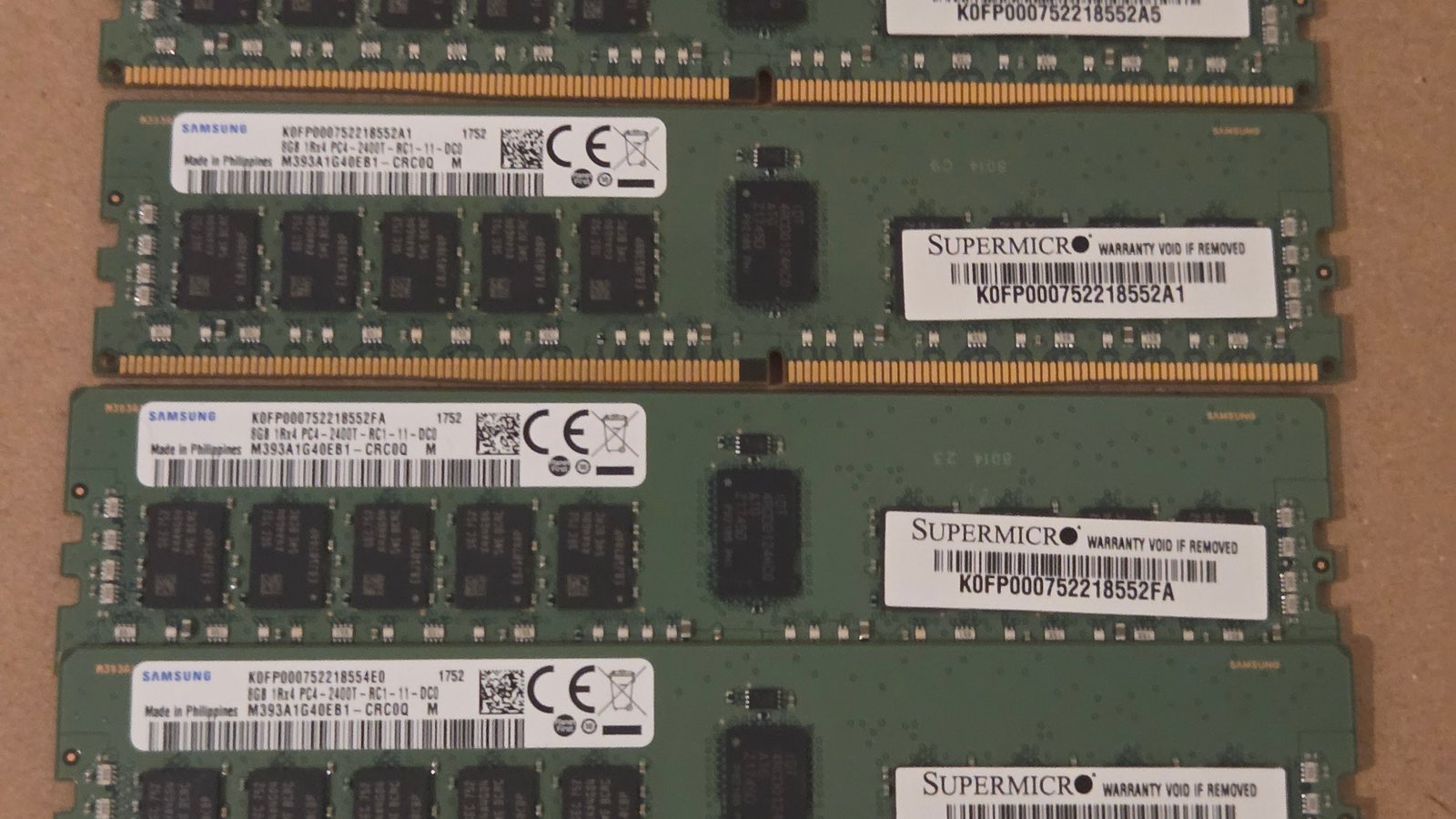
Photo: DDR4-2400 Registered (RDIMM) modules, the type of memory the DL380 Gen9 uses with v4 processors; ITEagle Europe – Sebastiaan Broekhoven, licensed under CC BY-SA 4.0, via Wikimedia Commons; cropped.