Every organisation with accounting software, office automation, shared files or a phone system needs a server. This short article explains what a physical server is, what problem virtualization solves and what setting it up involves.
What is a physical server?
A server is a computer built for round-the-clock, non-stop operation. The main differences from an ordinary computer:
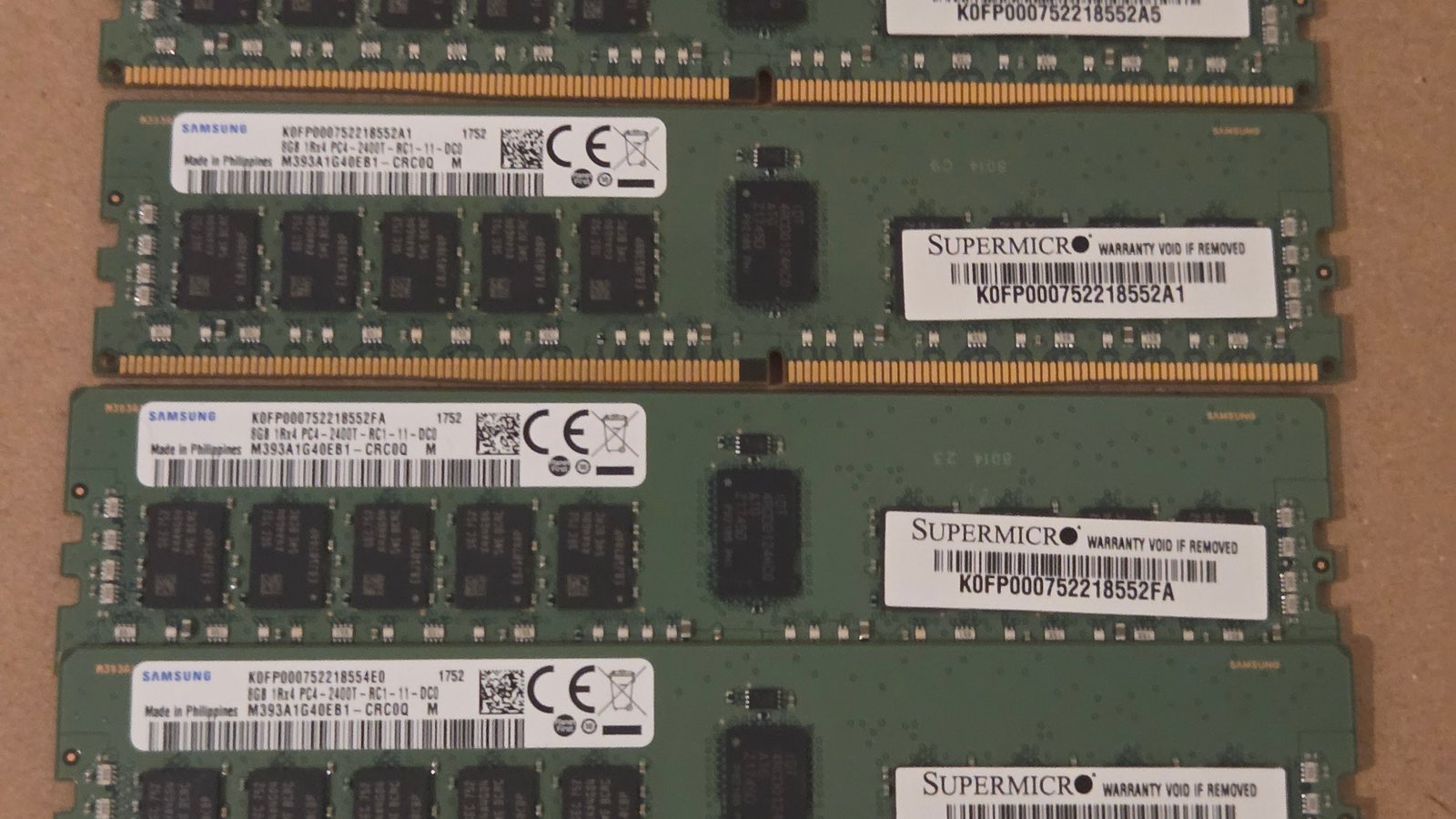
- ECC memory: detects and corrects memory errors.
- RAID: combines several disks so data is not lost when one disk fails.
- Redundant power supplies and fans: if one fails, the server stays up.
- Hot-swap parts: disks and power supplies can be replaced without shutting the server down.
- Remote management: with iLO on HPE servers and iDRAC on Dell, you can see and control the server remotely, even when the operating system has not started.
Common server form factors
- Tower: looks like an ordinary PC case; for small offices without a rack.
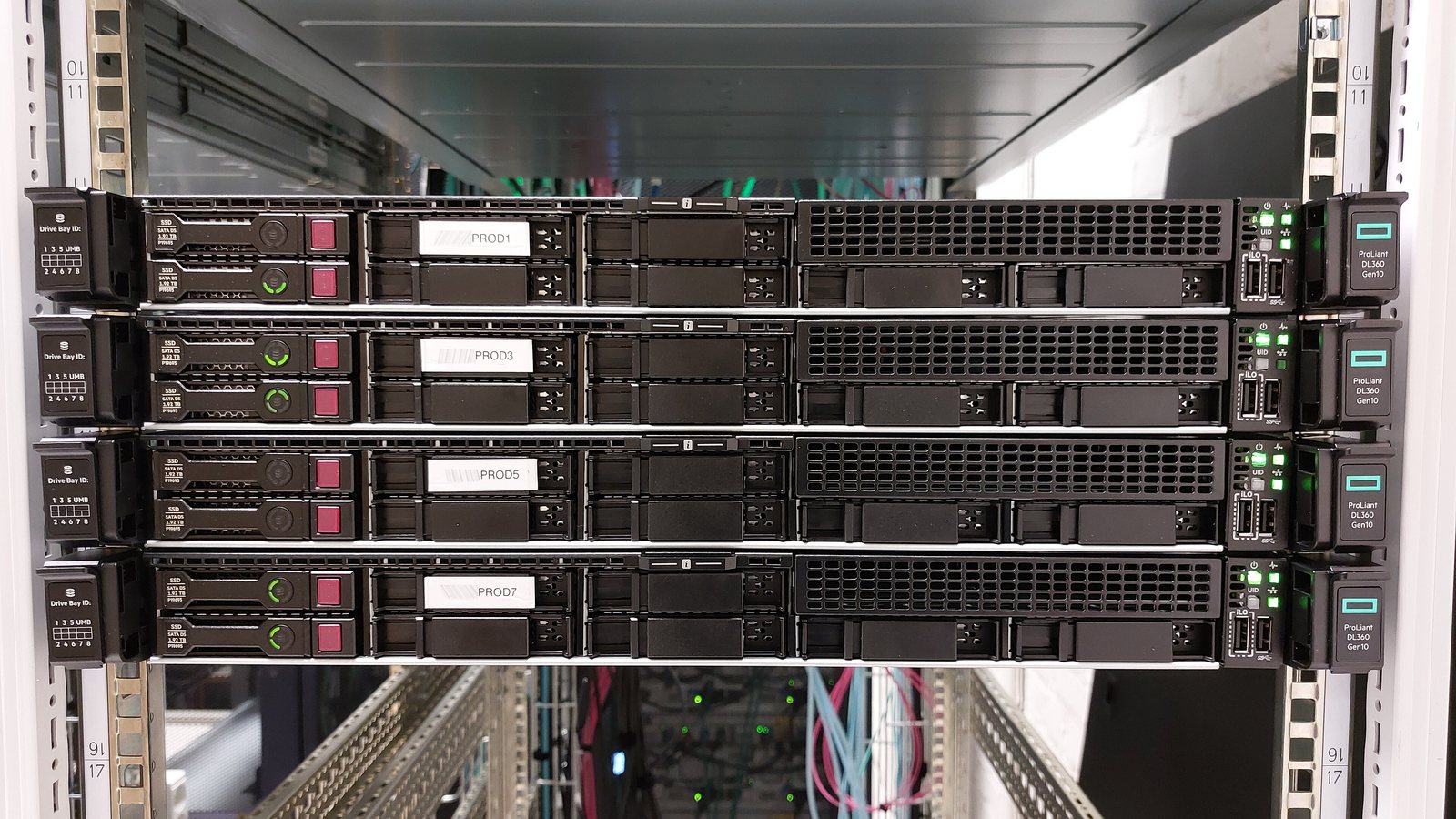
- Rack: the most common type, mounted in a rack. The HPE ProLiant DL series, such as the DL380, is among the most widely used servers.
- Blade: several compact servers in a shared chassis; for large data centres.
The main brands are HPE ProLiant, Dell PowerEdge and Lenovo ThinkSystem.
The problem with separate servers
The old way was to buy a separate server for each service: one for accounting, one for files, one for email. The result was that each server typically used less than 20 per cent of its capacity, yet each one cost power, space, cooling and maintenance.
What is virtualization?
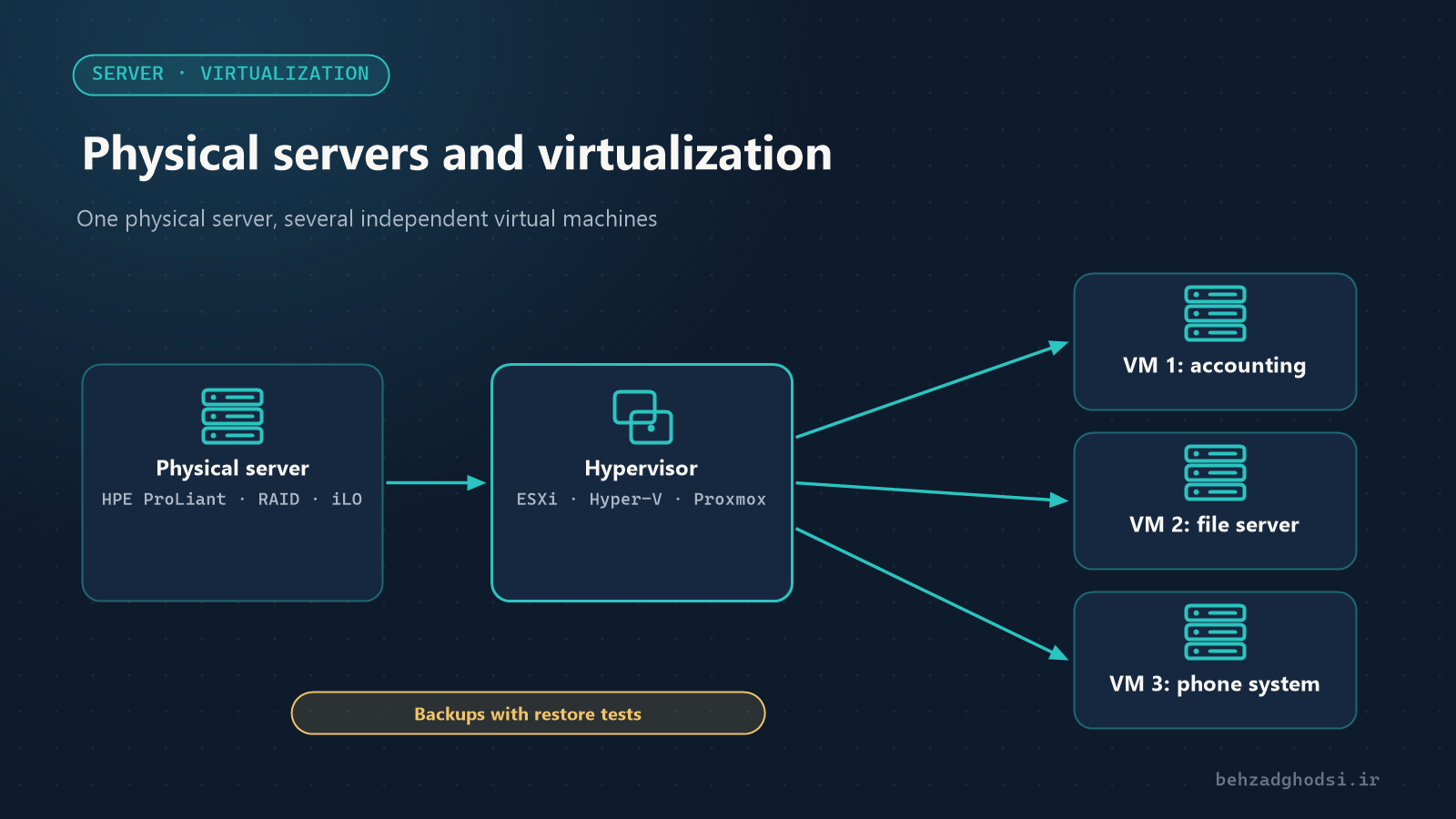
Virtualization means creating several independent virtual machines (VMs) on one physical server. Each virtual machine has its own operating system, memory and disk and is isolated from the others; it is as if you had several separate servers, but on one machine.
The software that does this is called a hypervisor, and there are two types:
- Type 1 (bare-metal): installed directly on the hardware. This type is used in production.
- Type 2: installed on an ordinary operating system (such as VMware Workstation and VirtualBox); good for testing and training.
Common hypervisors
- VMware vSphere / ESXi: the best-known enterprise virtualization platform; stable and full-featured, with live migration (vMotion) and High Availability. Its licensing has changed in recent years; check the current terms before choosing it.
- Microsoft Hyper-V: ships with Windows Server and is an easy choice for organisations with Microsoft infrastructure.
- Proxmox VE: open source and free, based on KVM, with web management, built-in backups and clustering. It has become very popular in recent years.
Steps to set up virtualization
- Assessment: list the services and the resources each needs (CPU, memory, disk), and estimate growth over the next few years.
- Choose the server: enough CPU and memory, and suitable disks. Memory is usually the first resource to run out.
- Configure RAID: RAID 1 for the operating system and usually RAID 10 or RAID 5/6 for data, depending on speed and capacity needs.
- Update the firmware and set up iLO for remote management.
- Install the hypervisor and configure the management network with a static IP.
- Design the virtual network: virtual switches and traffic separation with VLANs; keep the management network apart from the users’ network.
- Create the virtual machines and install the operating systems and guest tools (such as VMware Tools).
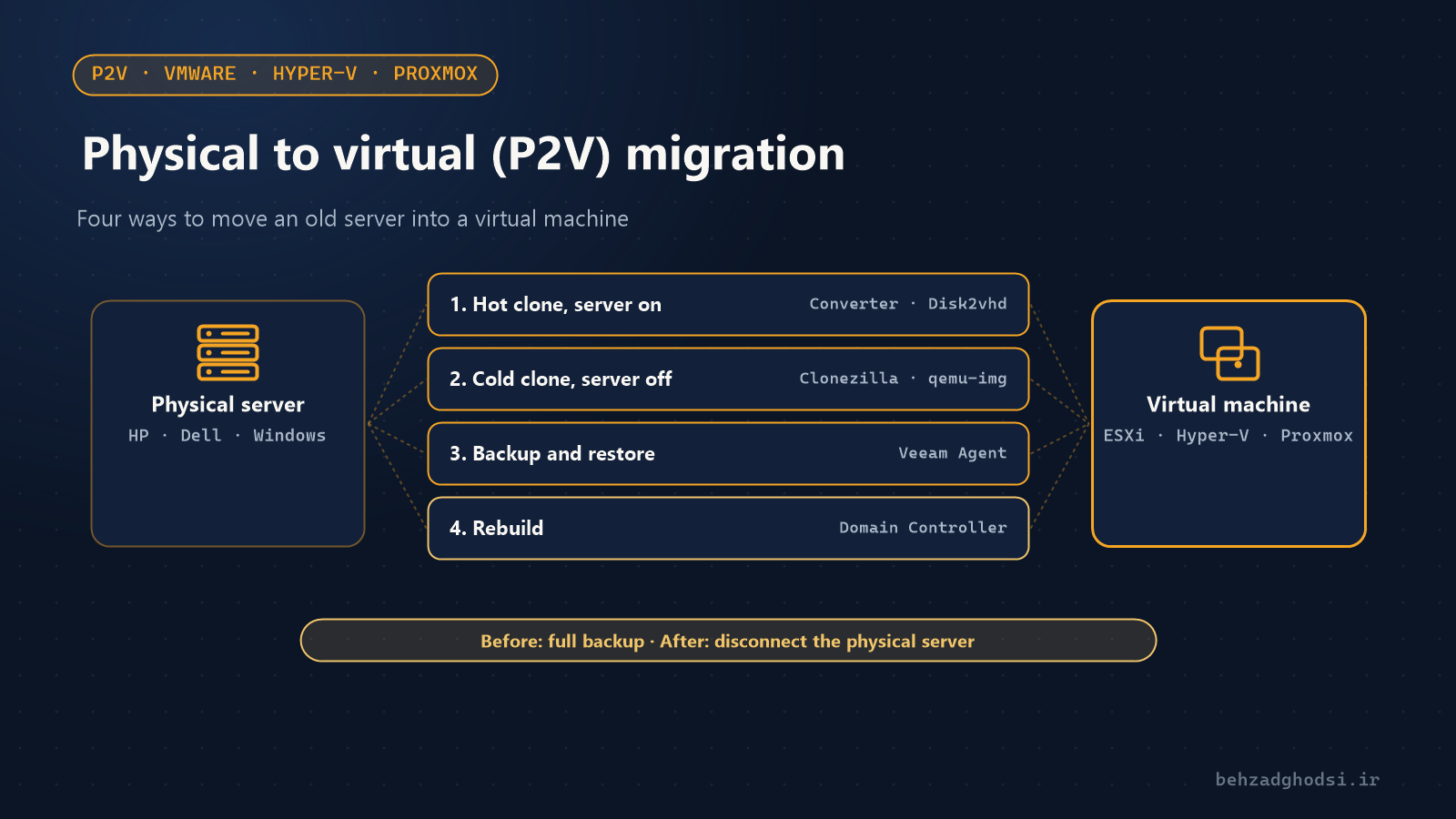
- Migrate services from the old servers (P2V) in stages.
- Back up and test a restore: before handover, not after the first failure.
Benefits of virtualization
- Savings: fewer servers, less power and less space.
- Snapshots: before any major change, take a snapshot of the machine and roll back if something goes wrong.
- Simpler backups: a whole virtual machine is backed up and restored in one go.
- Fast provisioning: a new server is created in minutes, not weeks.
- Easy moves: a virtual machine is not tied to specific hardware.
If it does not work
- All eggs in one basket: if the only physical server fails, every machine goes down together. For critical services, plan for two servers and shared storage.
- A snapshot is not a backup: a snapshot lives on the same disk and is lost if the disk fails.
- Over-allocating resources: if the machines’ combined memory far exceeds the server’s real memory, everything slows down.
- Ignoring power: without a UPS, a power cut can damage disks and machines.
In-house server or cloud?
Virtualization on your own server is in effect a small private cloud. If you are unsure whether to keep services in-house or move them to the cloud, read What is the cloud? The world’s leading providers.
A physical server is hardware built for uninterrupted work, and virtualization lets you get several times more out of the same hardware. The right server, suitable RAID, a tidy virtual network and tested backups are the four pillars of reliable infrastructure.