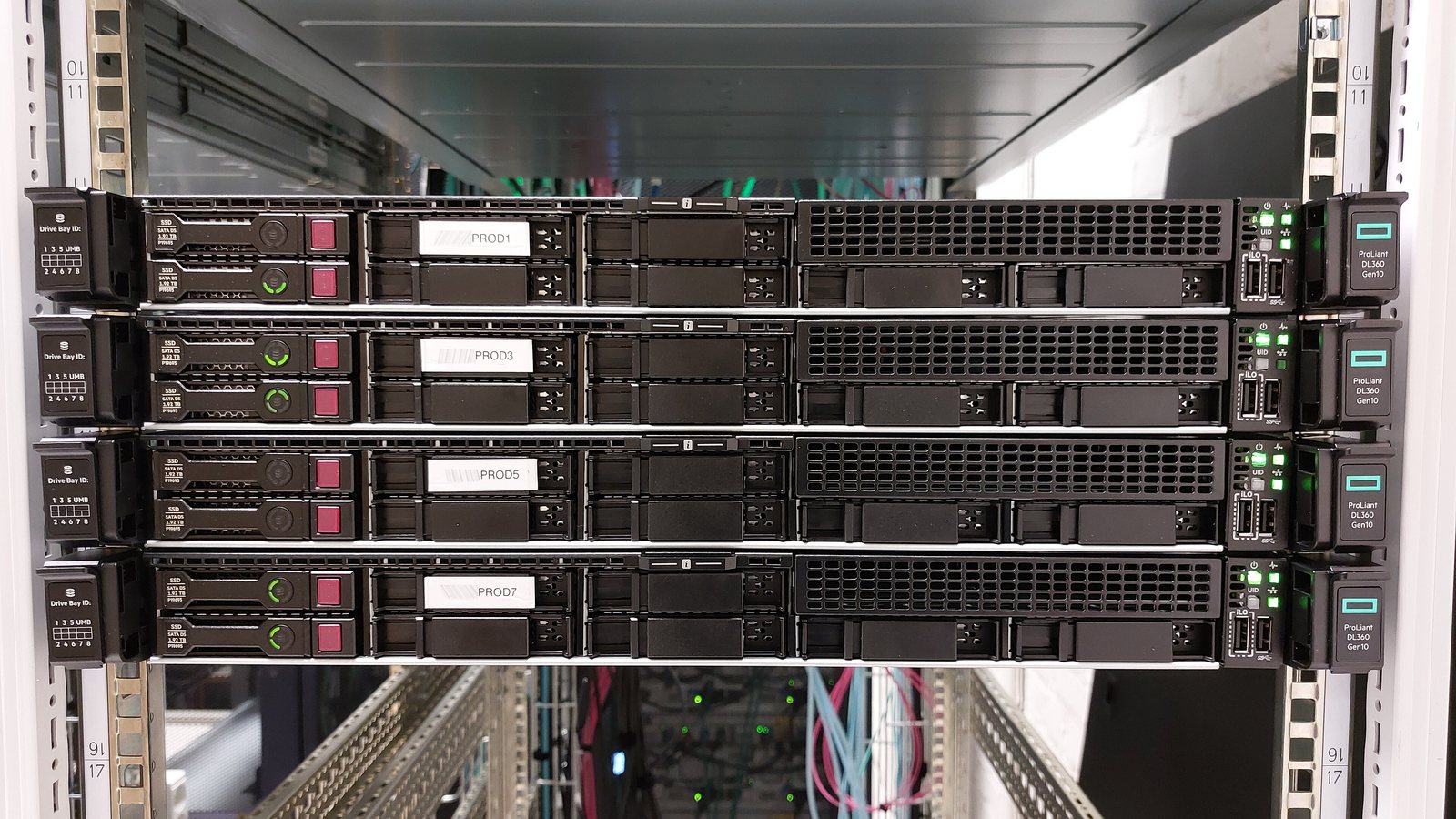
Old servers tend to share one problem: the hardware is wearing out, but they run software nobody dares to touch, such as an old accounting package, a database or a custom application. Physical to virtual migration, or P2V, moves that server with all its settings and applications into a virtual machine on VMware ESXi, Hyper-V or Proxmox.
Why virtualize a physical server?
- No more ageing hardware: the virtual machine no longer depends on that server’s disks, power supplies and motherboard.
- Simpler backup and recovery: the whole server is a set of files; with snapshots and VM-level backups, rolling back takes minutes.
- Several servers on one host: less power, less rack space and lower maintenance costs.
- Easy to move: the VM can later go to new hardware or even to the cloud.
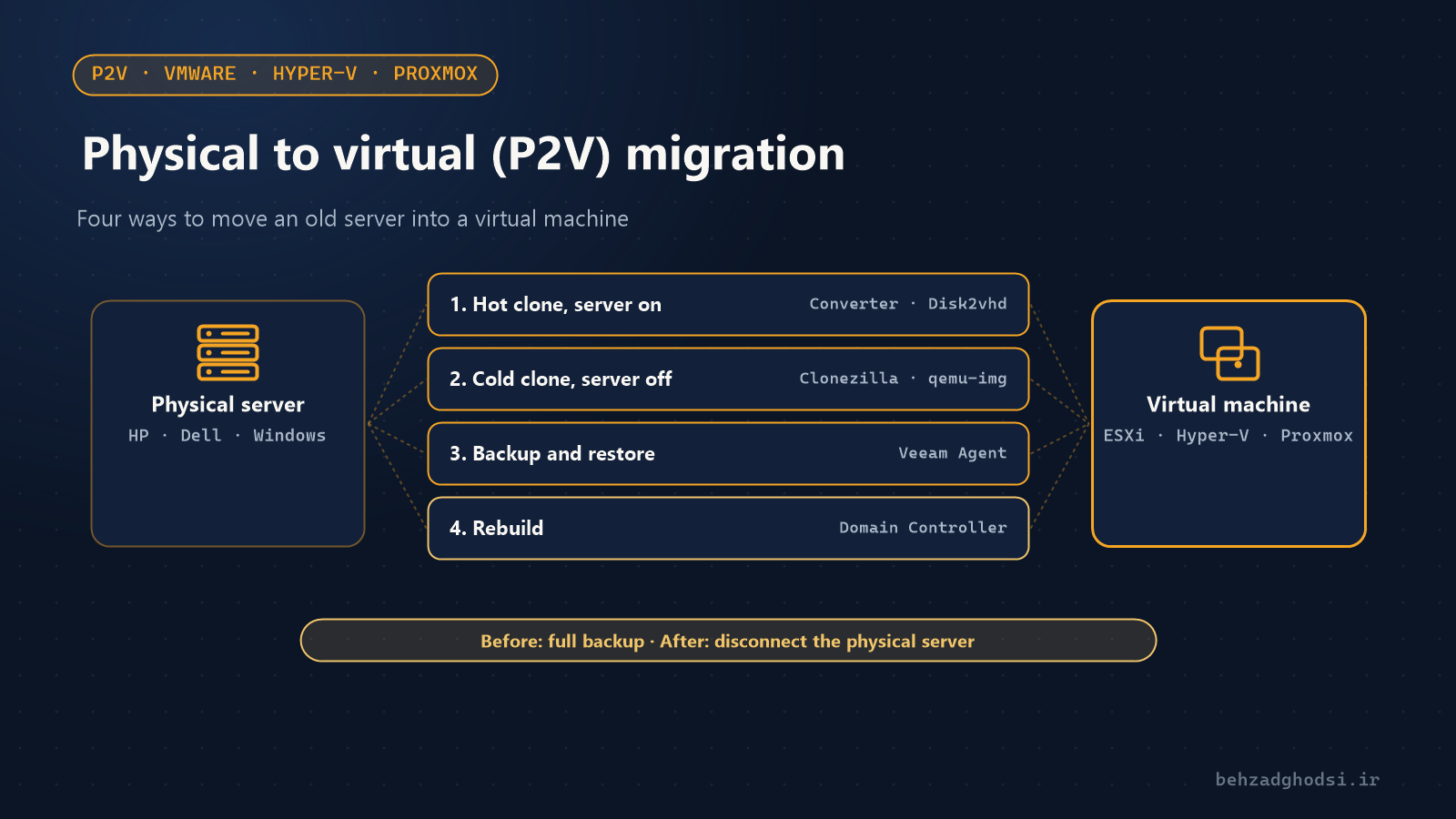
Four ways to do P2V
| Method | Is the server shut down? | Common tools | Best for |
|---|---|---|---|
| Hot clone | No, until the switchover | VMware Converter, Disk2vhd | Typical Windows and Linux servers |
| Cold clone | Yes, throughout | Clonezilla, dd and qemu-img | Databases and servers whose data changes constantly |
| Backup and restore | No | Veeam Agent | Sites that already back up with Veeam |
| Rebuild | No | Fresh install and service migration | Domain controllers and very old servers |
1. Hot clone with VMware Converter (for VMware)
VMware vCenter Converter Standalone runs on the live server (or connects to it remotely) and copies its disks straight to an ESXi host or vCenter:
- Install Converter on another machine or on the server itself and click Convert Machine.
- Choose a Powered on source, Remote Windows or Linux, and enter the credentials.
- Set the ESXi host or vCenter as the destination, pick a datastore and make the disks thin.
- Under Options, choose a VMXNET3 network adapter and a sensible CPU and memory size.
- Enable Synchronize changes so that last-minute changes are copied too.
Download the tool only from Broadcom’s official site; old Converter builds have trouble with recent Windows versions and ESXi 8.
2. Hot clone with Disk2vhd (for Hyper-V)
Disk2vhd, part of Microsoft Sysinternals, uses VSS to build a VHDX file from running Windows:
disk2vhd64.exe * E:\p2v\srv-acc.vhdxCopy the file to the Hyper-V host, create a Generation 1 VM (for older BIOS servers) or Generation 2 VM (for UEFI servers) and attach the VHDX. Save the output to a disk other than the ones you are converting.
3. Cold clone for databases and Proxmox
When data changes all the time, such as an SQL database or accounting software, the safest route is a powered-off server. Boot from live media such as Clonezilla, take a raw image of the disk, then convert it to the target format with qemu-img:
qemu-img convert -p -O vmdk  srv-acc.img srv-acc.vmdk    # VMware
qemu-img convert -p -O vhdx  srv-acc.img srv-acc.vhdx    # Hyper-V
qemu-img convert -p -O qcow2 srv-acc.img srv-acc.qcow2   # Proxmox / KVM
On Proxmox you can import the image straight into a VM:
qm importdisk 120 srv-acc.img local-lvm4. Backup and restore with Veeam
If the physical server is backed up with Veeam Agent for Windows, Veeam Backup & Replication can restore that backup directly as a VM with Restore to VMware or Restore to Hyper-V (or Instant Recovery). The big bonus: you test your backup at the same time.
5. Sometimes it is better not to convert
Do not P2V a domain controller. Bringing back an old copy of a domain controller can break Active Directory replication (USN rollback). Build a new virtual domain controller, move the roles and demote the old one. For very old servers such as Windows Server 2003, a fresh install and application migration is usually less trouble.
Checklist before you convert
- Take a full backup and have a rollback plan.
- Check licences: an OEM Windows licence that came with an HP or Dell server does not move to a VM. Software licensed to the hardware or to a USB dongle needs to be sorted out in advance.
- Compare the disks’ real used space with the free space on the target datastore.
- Write down the IP address, DNS and gateway of every network adapter.
- Stop database services and sensitive applications for the switchover.
After the conversion
- Disconnect the physical server from the network so that two servers with the same name and IP are never on at once.
- Install VMware Tools or Integration Services.
- Remove old hardware tools and drivers, such as HP Management Agents and RAID controller software.
- Set the IP on the new network adapter. If Windows says the IP is assigned to another adapter, remove the old hidden adapter in Device Manager.
- Reactivate Windows and test applications, services and user access.
- Keep the physical server switched off for a few days, and retire it once you are sure.
In short
For most servers, a hot clone with VMware Converter or Disk2vhd is the quickest route. Cold cloning is safer for databases, and for a domain controller, build a new one. Whichever you choose, never skip the backup before and the testing after.
Still deciding between physical servers and virtualization? Read Physical servers or virtualization?. For backups after virtualizing, see the 3-2-1 rule with Veeam.