For every packet, a router must decide which path to send it on. It decides using the routing table. The router knows the networks connected directly to it; for everything else you have to add routes. The examples in this article are written for RouterOS 7.
Viewing the routing table
/ip route printIn the output, routes flagged C (connected) are directly connected networks, S are static routes you wrote, and D are dynamic routes, such as those added by the DHCP client or PPPoE. The A flag means the route is active.
1. A static route to another network
Suppose the network 192.168.20.0/24 sits behind another router at 10.0.0.2:
/ip route add dst-address=192.168.20.0/24 gateway=10.0.0.2 comment="To Branch LAN"Remember that the return route is needed too: the other router must also know how to reach your network.
2. The default route
The default route (0.0.0.0/0) means “any destination without another route goes this way”, which usually means the internet:
/ip route add dst-address=0.0.0.0/0 gateway=203.0.113.9If the internet connection uses DHCP or PPPoE with add-default-route=yes, this route is added automatically.
3. Failover between two internet lines
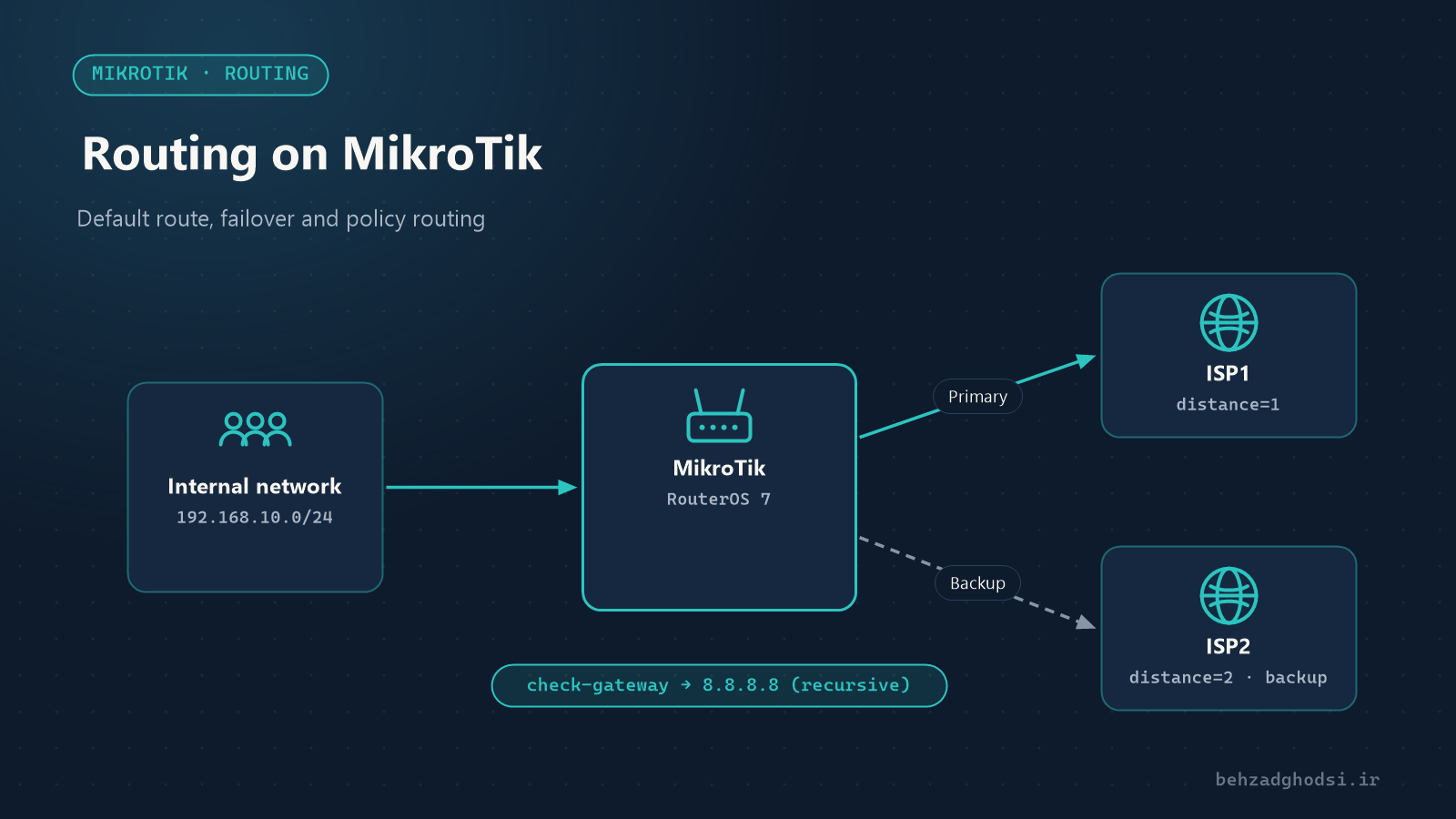
You have two internet lines and want traffic to switch to the second one automatically if the first fails. distance is the route’s priority; a lower number means higher priority:
/ip route add dst-address=0.0.0.0/0 gateway=203.0.113.9 distance=1 check-gateway=ping comment="ISP1 main"
/ip route add dst-address=0.0.0.0/0 gateway=198.51.100.1 distance=2 comment="ISP2 backup"
check-gateway=ping pings the gateway every few seconds and disables the route if there is no reply.
The limitation of this method: only the directly connected gateway is checked. If the modem is up but the internet behind it is down, the gateway still answers the ping and no failover happens.
4. Recursive routing: real failover
The fix is to check an address on the internet instead of the gateway. We make 8.8.8.8 reachable only through the first line and define the default route via that address:
/ip route add dst-address=8.8.8.8/32 gateway=203.0.113.9 scope=10 comment="Monitor via ISP1"
/ip route add dst-address=0.0.0.0/0 gateway=8.8.8.8 target-scope=11 check-gateway=ping distance=1 comment="Default via ISP1 (recursive)"
/ip route add dst-address=0.0.0.0/0 gateway=198.51.100.1 distance=2 comment="Default via ISP2"
Now if the first line’s internet goes down for any reason, 8.8.8.8 stops answering, the first route is disabled and traffic moves to the second line. For more stability, define a separate monitoring address for the second line too (for example 1.1.1.1) in the same way.
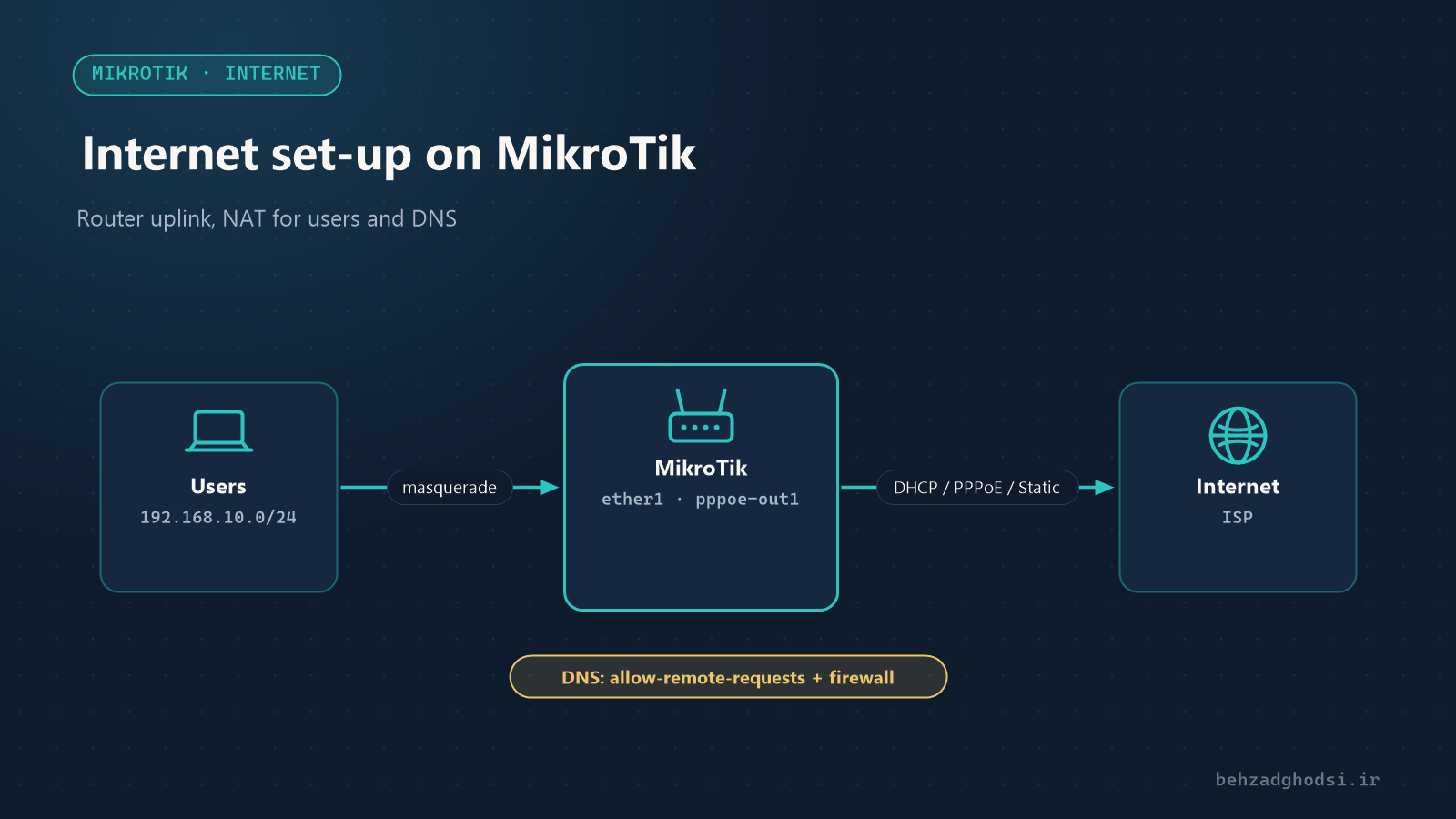
NAT must also exist for both lines; the simplest way is to make both internet interfaces members of the WAN list and define masquerade on that list.
5. Policy routing: specific traffic over a specific line
Sometimes you want part of the traffic to use a particular line, for example the accounting server should always reach the internet through the second line, which has a static IP. In RouterOS 7 this is done with a separate routing table:
/routing table add name=via-isp2 fib
/ip route add dst-address=0.0.0.0/0 gateway=198.51.100.1 routing-table=via-isp2
/routing rule add src-address=192.168.10.50/32 action=lookup-only-in-table table=via-isp2- The
via-isp2table has only one default route, through the second line. - The routing rule says the server
192.168.10.50must take its routes only from this table. - If you use
lookupinstead oflookup-only-in-table, traffic falls back to the main table when the second line is down.
To select traffic by port or destination, use mangle:
/ip firewall mangle add chain=prerouting src-address=192.168.10.0/24 dst-port=443 protocol=tcp action=mark-routing new-routing-mark=via-isp2 passthrough=noNote: FastTrack bypasses mangle. If policy routing with mangle does not work, narrow the FastTrack rule in the firewall so it excludes this traffic.
Checking the path
/ip route print where dst-address=0.0.0.0/0
/ip route print where active
/tool traceroute 8.8.8.8
If it does not work
- The route is there but does not work: the return route is missing on the other router.
- The route is inactive (no A flag): the gateway is unreachable or not in one of the router’s connected networks.
- After failover, users have no internet: NAT was not defined for the second line.
- Traffic comes back but then drops: with policy routing, replies to incoming traffic leave through the other line. Mark incoming connections per line (connection mark) and send the replies back the same way.
Static routes for other networks, distance for priority, recursive routing for real failover and policy routing to send specific traffic over a specific line. Always check with /tool traceroute that traffic takes the path you expect. Next: network security with MikroTik.