Any router with a public IP is scanned within minutes of going online. Bots try common passwords on Winbox, SSH and the web interface, and look for open DNS resolvers and vulnerable services. In recent years, large numbers of MikroTik routers that were not updated or were insecurely configured have ended up in botnets. This article walks through a secure, understandable configuration step by step.
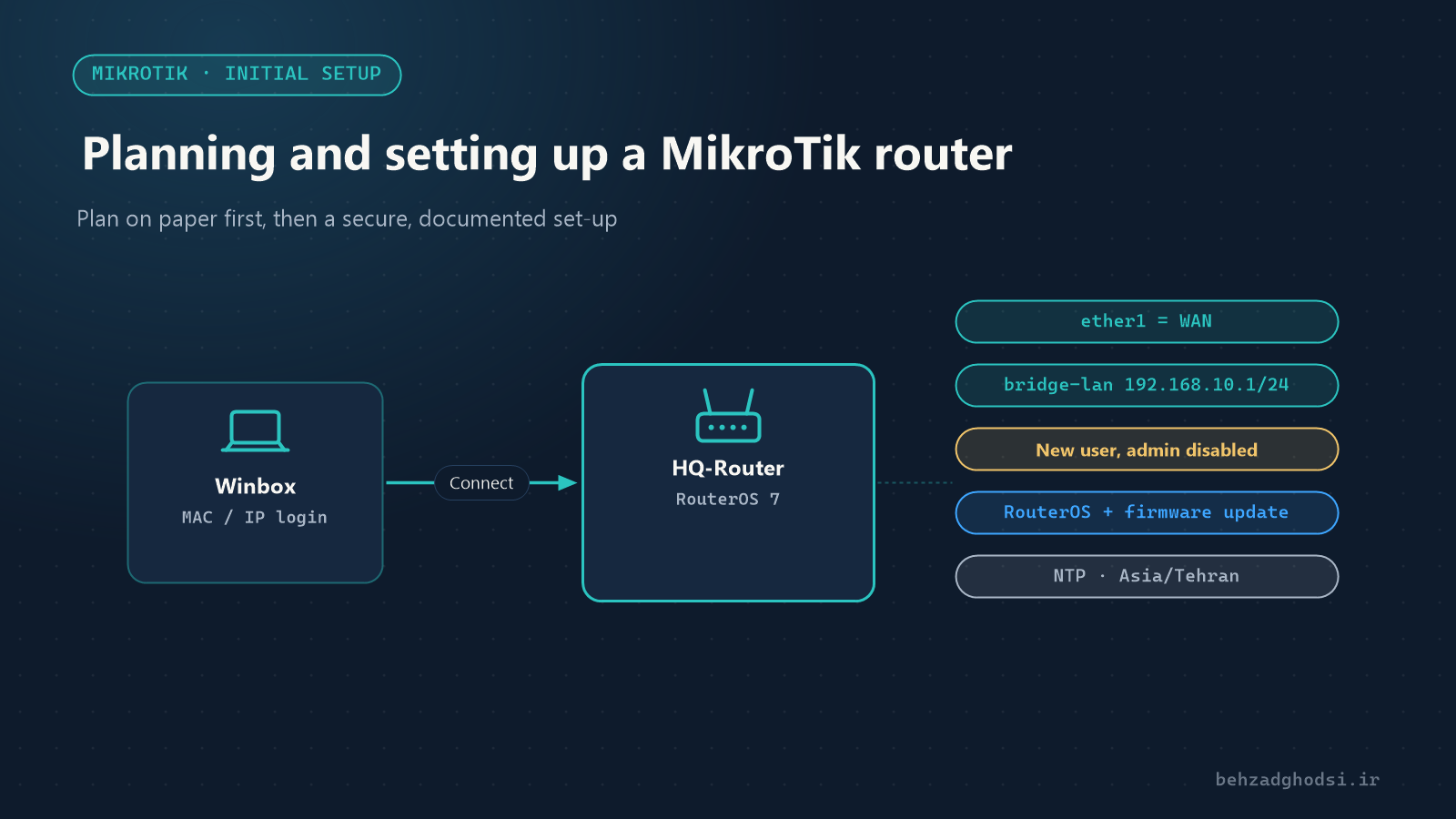
We assume you have created the WAN and LAN interface lists (see initial set-up) and that the internal network is 192.168.10.0/24.
How the MikroTik firewall works
- chain=input: traffic whose destination is the router itself, such as Winbox, DNS and pings to the router.
- chain=forward: traffic passing through the router, such as internal users going to the internet.
- Rules are checked from top to bottom, and the first matching rule is applied.
1. Protecting the router itself (input)
/ip firewall filter
add chain=input action=accept connection-state=established,related,untracked comment="input: accept established"
add chain=input action=drop connection-state=invalid comment="input: drop invalid"
add chain=input action=accept protocol=icmp comment="input: accept ICMP"
add chain=input action=accept in-interface-list=LAN comment="input: accept from LAN"
add chain=input action=drop comment="input: drop everything else"
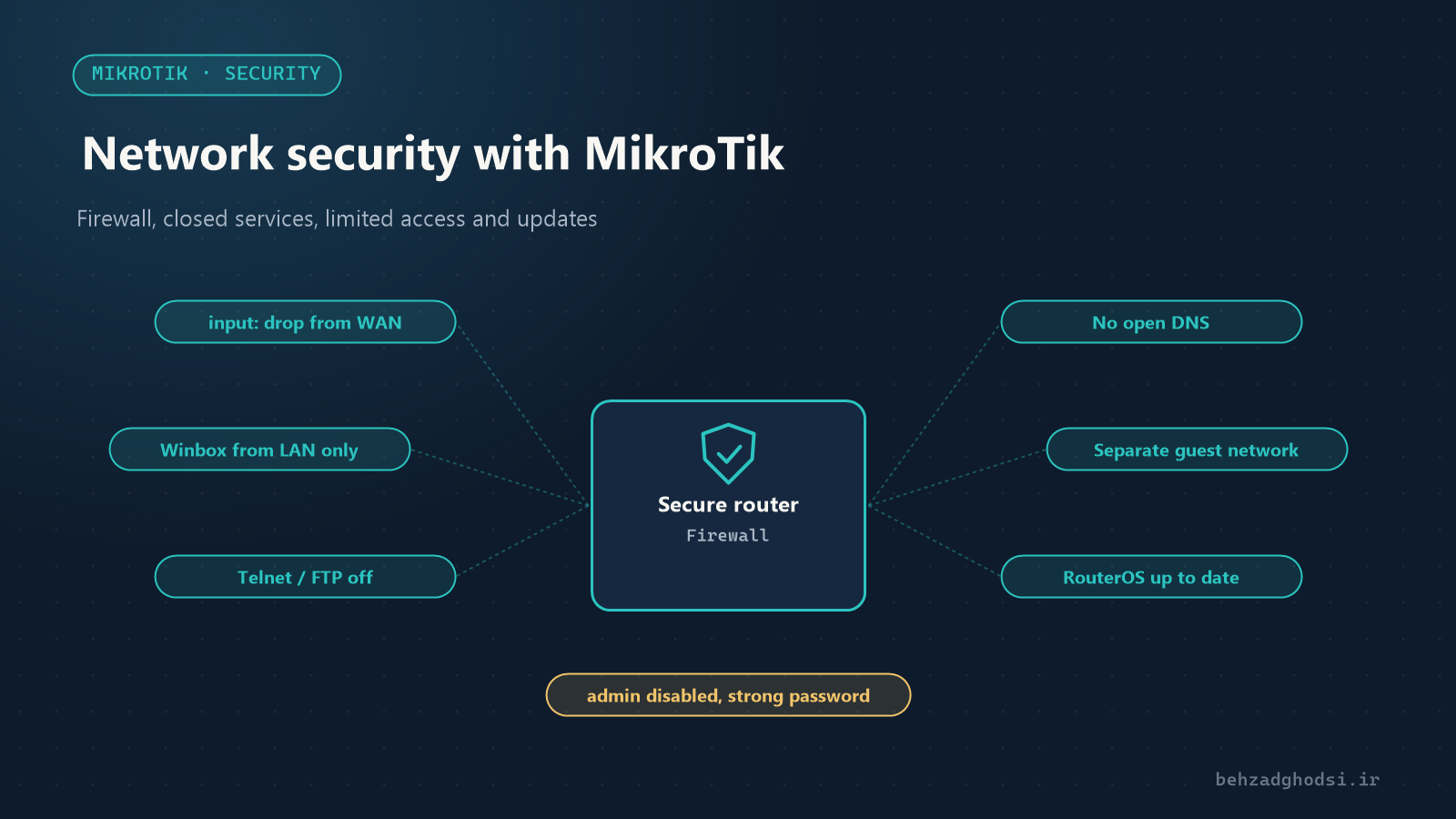
With these five rules, nobody on the internet can connect to the router’s Winbox, SSH or DNS. If you run a VPN on the router, open its port before the last rule.
Before adding the last rule, make sure you are connected through an interface in the LAN list, or you will lock yourself out. When working on a remote router, use Safe Mode (the Safe Mode button in Winbox or Ctrl+X in the terminal) so changes roll back automatically if the connection drops.
2. Protecting the internal network (forward)
/ip firewall filter
add chain=forward action=fasttrack-connection connection-state=established,related hw-offload=yes comment="forward: fasttrack"
add chain=forward action=accept connection-state=established,related,untracked comment="forward: accept established"
add chain=forward action=drop connection-state=invalid comment="forward: drop invalid"
add chain=forward action=drop connection-state=new connection-nat-state=!dstnat in-interface-list=WAN comment="forward: drop new from WAN unless port-forwarded"
The last rule means no new connection from the internet reaches the internal network unless you have written a port forward for it. FastTrack speeds the router up for ordinary traffic, but that traffic bypasses mangle and queues.
3. Closing unneeded services
/ip service print
/ip service disable telnet,ftp,www,api,api-ssl
/ip service set winbox address=192.168.10.0/24
/ip service set ssh address=192.168.10.0/24- Telnet and FTP are unencrypted.
- If you do not use WebFig, close
www. - Winbox and SSH should only be reachable from the internal network (or only from the admins’ computers).
Other services that are usually not needed:
/ip proxy set enabled=no
/ip socks set enabled=no
/ip upnp set enabled=no
/tool bandwidth-server set enabled=no
/ip ssh set strong-crypto=yes
4. Neighbour discovery and MAC access from inside only
By default, MikroTik announces itself with neighbour discovery protocols and allows logins by MAC address. Limit these to the internal network:
/ip neighbor discovery-settings set discover-interface-list=LAN
/tool mac-server set allowed-interface-list=LAN
/tool mac-server mac-winbox set allowed-interface-list=LAN
5. No open DNS
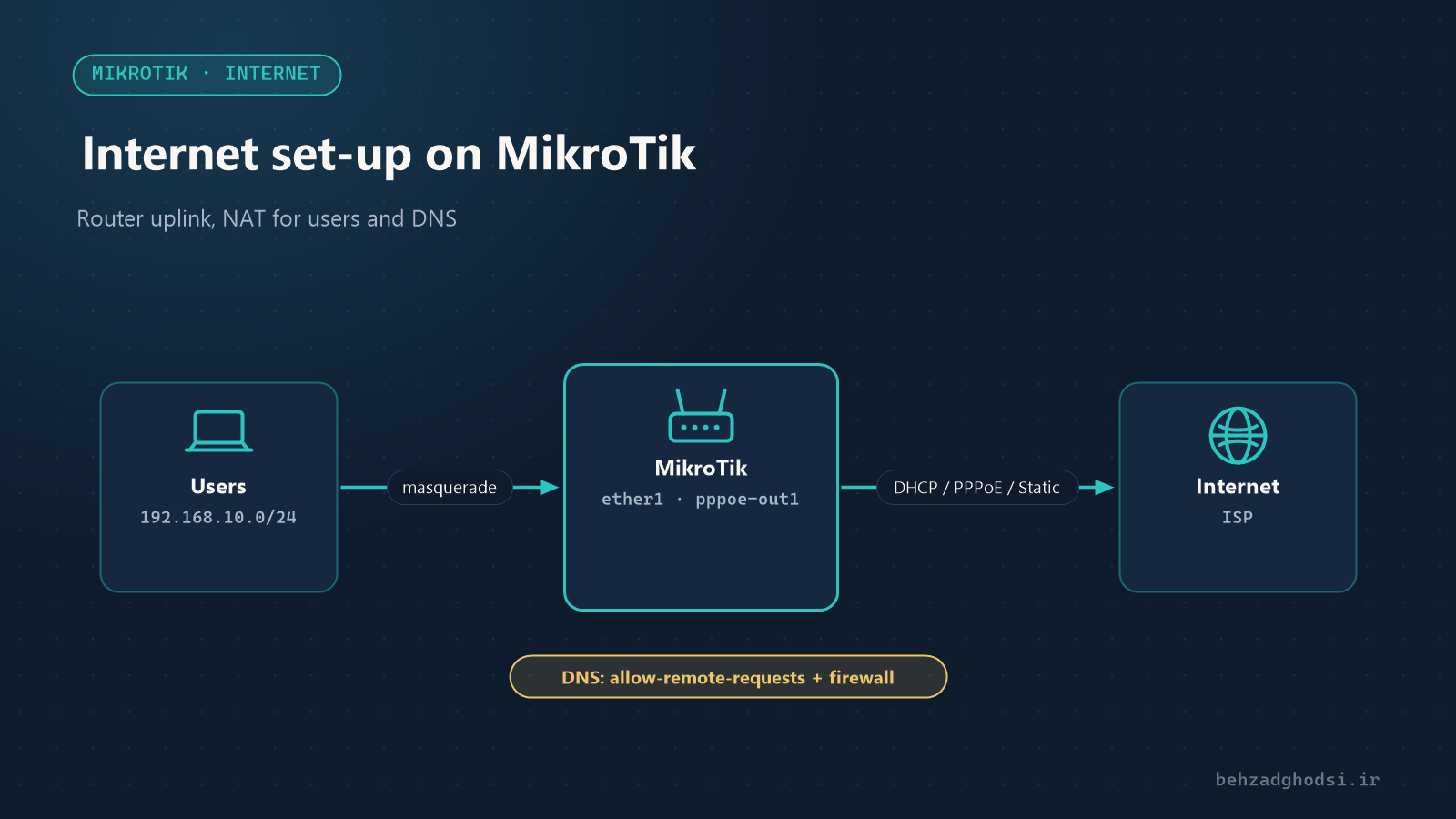
If allow-remote-requests=yes is set, the input rules above block DNS requests from the internet. Never remove the final “drop everything else” rule; a router with open DNS is abused in DDoS attacks on others.
6. Users and passwords
- Disable the
adminuser and create one with a different name. - Create a separate user for each administrator, so the logs show who did what.
- For someone who only needs to see the status, the
readgroup is enough.
/user add name=support group=read password="Read-Only-Pass"7. Isolating the guest network
The guest network (for example VLAN 30 with 192.168.30.0/24) must not reach the internal network:
/ip firewall filter add chain=forward src-address=192.168.30.0/24 dst-address=192.168.10.0/24 action=drop comment="Guest cannot reach LAN" place-before=0place-before=0 puts the rule at the top of the list. Use the same method to separate the camera network from the rest.
8. Updates
Most large-scale attacks on MikroTik used vulnerabilities that had long been fixed in newer versions.
/system package update check-for-updates
/system package update install
The stable channel suits production routers. Take a backup before updating.
Checklist
- An input firewall ending with a drop rule
- A forward firewall that only lets new connections from WAN through for port forwards
- Telnet, FTP, API and web off; Winbox and SSH limited to the internal network
- Neighbour discovery and MAC server on LAN only
- admin disabled, strong passwords and a separate user for each person
- Guest and camera networks separated from the internal network
- RouterOS and firmware up to date, with regular backups
MikroTik security starts with a few simple rules: the router is reachable only from inside, the network only from outside through specific port forwards, unneeded services are off and RouterOS is up to date. For secure access from outside without opening ports, read Reaching devices from outside the network.