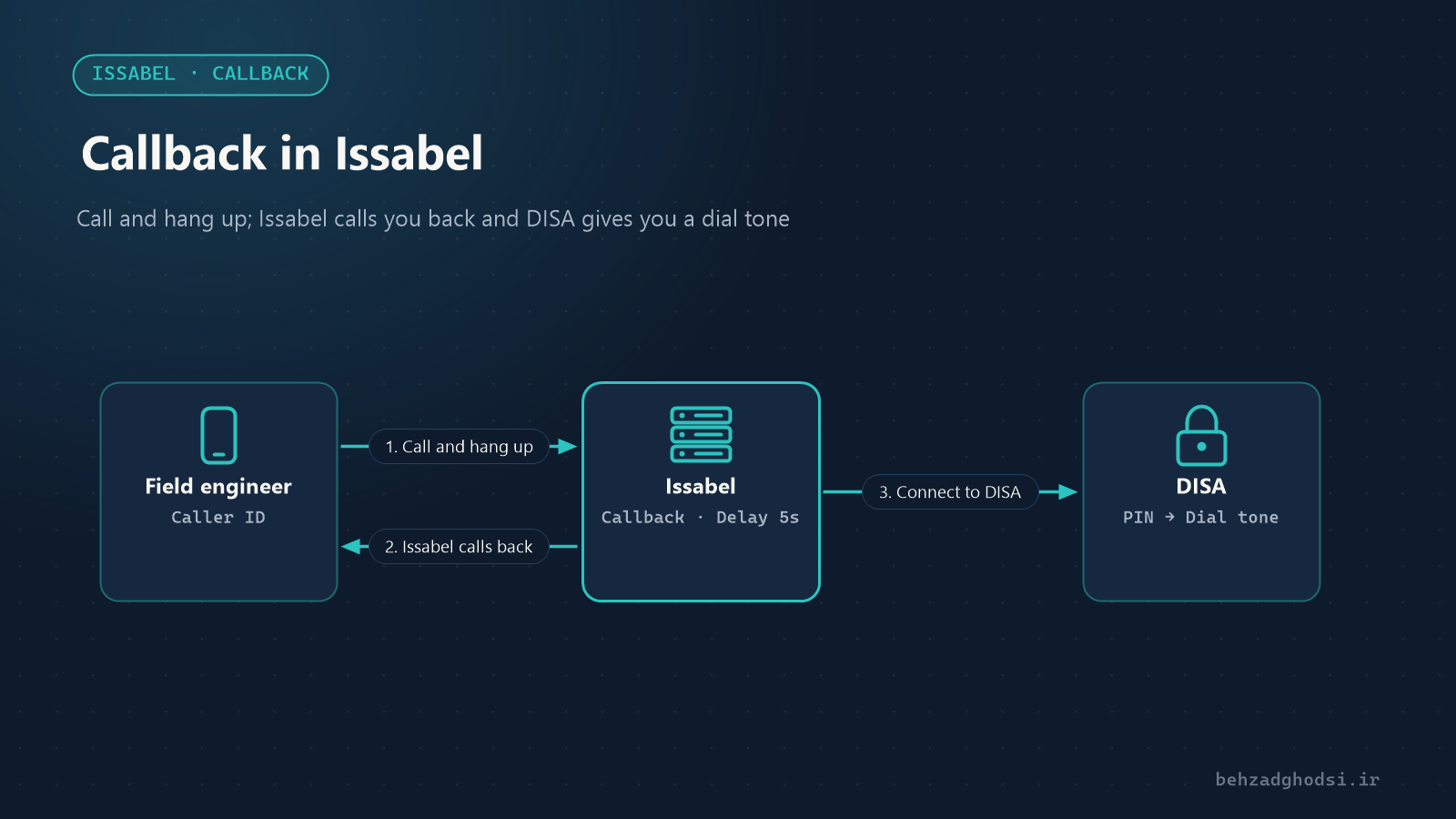
An engineer on a field assignment who has to make several work calls either pays from their own mobile or files an expense claim later. With Callback in Issabel, they simply call the company number and hang up. A few seconds later the phone system calls them back, and from then on the call is on the company’s lines.
How does Callback work?
- The user calls the dedicated Callback number.
- Issabel ends the call and keeps the caller’s number (Caller ID).
- After a short delay, Issabel calls that number back through the outbound lines.
- When the user answers, the call is connected to the destination you chose, usually DISA so the user can enter a PIN and get a dial tone, or an extension, IVR or Ring Group.
Prerequisites
- An incoming line or DID set aside for Callback.
- An Outbound Route and trunk that can call the user’s number (usually a mobile).
- If the destination is DISA, the DISA must already exist. See DISA in Issabel.
- Your line provider must send the caller’s Caller ID; without it, the system does not know which number to call.
Creating Callback step by step
From the PBX menu open PBX Configuration and choose Callback. Click Add Callback.
- Callback Description: a descriptive name, for example “Field engineers callback”.
- Callback Number: the number the system should call. If left empty, Issabel calls the caller’s own number; this is the usual set-up.
- Delay Before Callback: how many seconds after the hang-up the system calls. 5 to 10 seconds is good, so the user’s line is free.
- Destination after Callback: where the user is connected once they answer, for example DISA.
Click Submit and then Apply Config.
Connecting Callback to an incoming line
Open Inbound Routes and create a new route:
- DID Number: the line set aside for Callback.
- Caller ID Number: the authorised user’s mobile number. This way only that number can trigger Callback. Create a separate Inbound Route for each user.
- Set Destination: choose Callback and then the Callback you created.
A common problem: the caller number format
The Caller ID can arrive in different formats, for example with or without the leading zero, or with the international + prefix. Issabel calls back using the format it received, so the Outbound Route must recognise it:
- In the Caller ID Number field of the Inbound Route, enter the number exactly in the format your provider sends. Reports → CDR Report shows the format calls arrive in.
- If numbers arrive without the leading zero, create a Dial Pattern in the Outbound Route with a prepend that adds it back, for example prepend
0with a match pattern for the remaining digits.
Keep Callback secure
Callback together with DISA means someone outside gets a dial tone at your expense. So:
- Always restrict the Inbound Route to authorised numbers with Caller ID Number.
- Use DISA with a strong PIN as the destination, never a dial tone without a PIN.
- For expensive routes such as international calls, set a separate password on the Outbound Route or close that route.
- Review the call reports regularly; Callback calls are visible in the CDR.
Using Callback as a user
- Call the Callback number and hang up after one or two rings.
- Wait a few seconds for the phone system to call you, and answer.
- If the destination is DISA, enter the PIN and press #.
- You hear the dial tone; dial an extension or an outside number.
Troubleshooting
- The system does not call back: no Caller ID was sent, or the Outbound Route does not recognise the number format. Check the CDR.
- The system calls back too soon and the user’s line is busy: increase Delay Before Callback.
- Callback works for everyone: the Caller ID Number in the Inbound Route was left empty. Fill it in.
- The call drops after answering: the Callback destination is wrong, or DISA received a wrong PIN.
Callback moves the cost of mobile staff’s work calls onto the company lines and, combined with DISA, turns any phone into a mobile office. The keys to using it safely are restricting Caller ID, a strong DISA PIN and regular review of the reports.