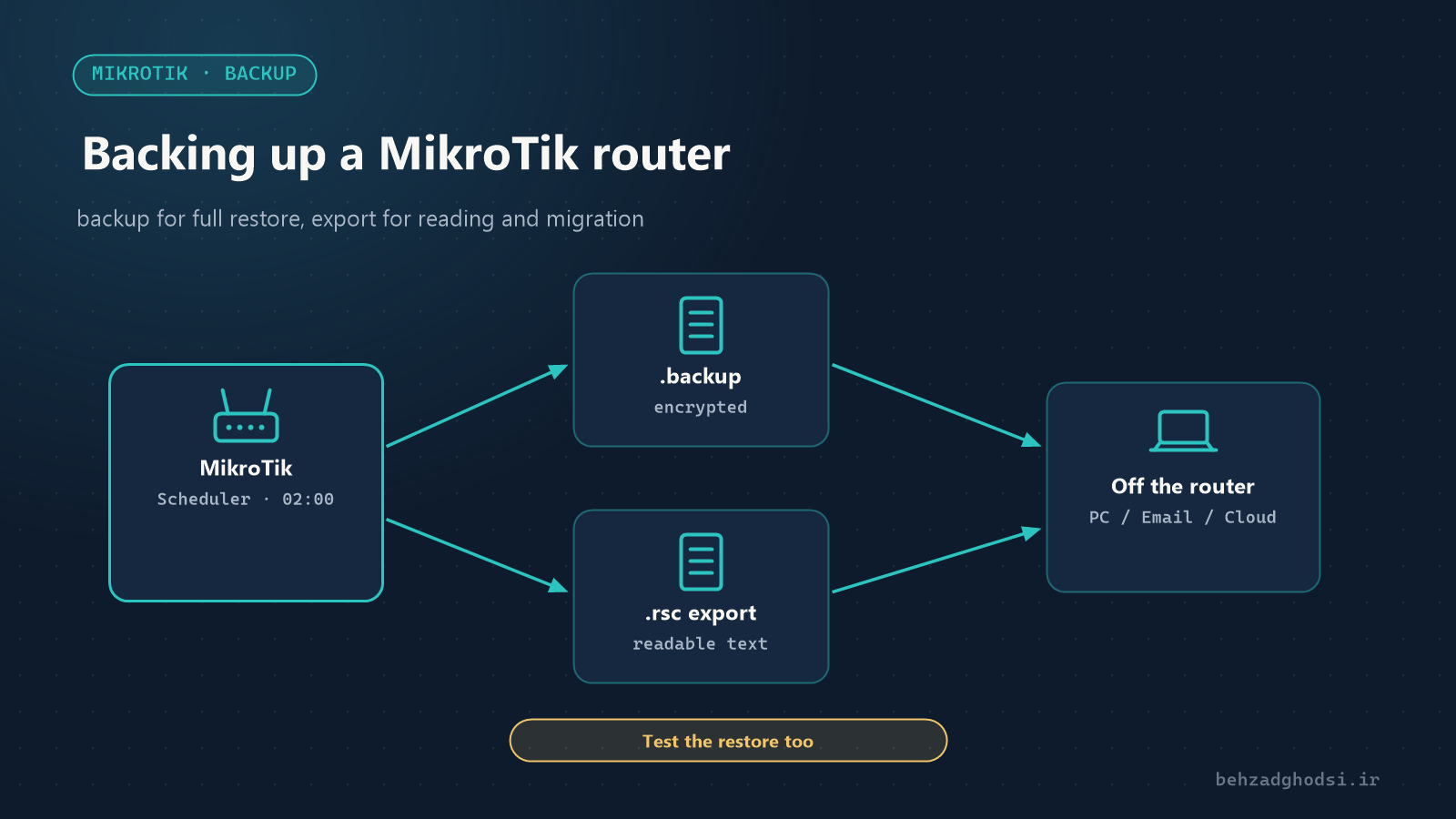
A MikroTik router can burn out, be stolen, run into trouble after a failed update, or someone can wipe its settings by mistake. With a backup, the network is back in minutes; without one, you have to rebuild everything from memory. MikroTik has two kinds of backup, each with its own purpose.
Backup or export?
- Backup (a
.backupfile): a complete binary file, including users, passwords and all settings. It is for restoring on the same device or a device of the same model. It cannot be read or edited. - Export (a
.rscfile): readable text containing the configuration commands. You can read it, edit it, run part of it on another router, or compare it with an earlier version. It does not include RouterOS user passwords.
Best practice: take both.
Taking a backup
/system backup save name=hq-router password="Backup-Encrypt-Pass"Setting a password encrypts the file. Always do this; the backup file contains all of the router’s passwords and keys.
Taking an export
/export file=hq-routerIn RouterOS 7, sensitive information such as the PPPoE password, WireGuard keys and Wi-Fi passwords is left out of the export by default. If you need it as well:
/export show-sensitive file=hq-router-fullProtect a file created with show-sensitive like a password.
Getting the files off the router
The files are stored under Files. In Winbox, drag them from the Files window to your desktop, or right-click and choose Download. A backup that only lives on the router itself is not a backup; if the router fails, the file is gone too.
Restoring a backup
Upload the .backup file to the router’s Files and run:
/system backup load name=hq-router.backup password="Backup-Encrypt-Pass"The router restarts and comes up with the settings from the file. If you load it on another device of the same model, note that interface MAC addresses come from the file too. If the old device is still on the network, you get MAC conflicts; reset the addresses with reset-mac-address.
Restoring an export
An export is better suited to a new router or a different model. Reset the router without the default configuration, upload the .rsc file and run:
/import file-name=hq-router.rscIf the model is different, first open the file in a text editor and match the interface names to the new device. After the import, set the users’ passwords again.
Automatic daily backups
Create a script that takes both a backup and an export:
/system script add name=auto-backup policy=read,write,policy,test,sensitive source={
  :local name [/system identity get name]
  /system backup save name=("auto-" . $name) password="Backup-Encrypt-Pass"
  /export file=("auto-" . $name)
}
and run it every night at 2 a.m.:
/system scheduler add name=daily-backup start-time=02:00:00 interval=1d on-event=auto-backupThis script overwrites the previous file every night. To keep several versions, add the date to the file name.
Sending the backup by email
To have copies stored off the router automatically, you can email them. First set up the mail server (TLS parameter names differ slightly between RouterOS versions; see the Tools → Email menu):
/tool e-mail set server=smtp.example.com port=587 user=backup@example.com password="Mail-Pass" from=backup@example.comThen add the sending step at the end of the script above:
/tool e-mail send to="it@example.com" subject=("Backup " . $name) file=("auto-" . $name . ".backup")Wait briefly with :delay 5s between creating the file and sending it, so the file is fully written.
MikroTik Cloud Backup
RouterOS can also store one encrypted copy on MikroTik’s servers:
/system backup cloud upload-file action=create-and-upload password="Cloud-Backup-Pass"It is simple, but it keeps only one copy and depends on the router being able to reach MikroTik’s servers. Treat it as a complement to your own copies, not a replacement.
A few recommendations
- Take a manual backup before every significant change or RouterOS update.
- Keep copies off the router, preferably in two different places.
- Encrypt the backup file and protect a sensitive export like a password.
- Every few months, test a restore on a test device. Until you have tried a restore, you do not really know whether the backup is usable.
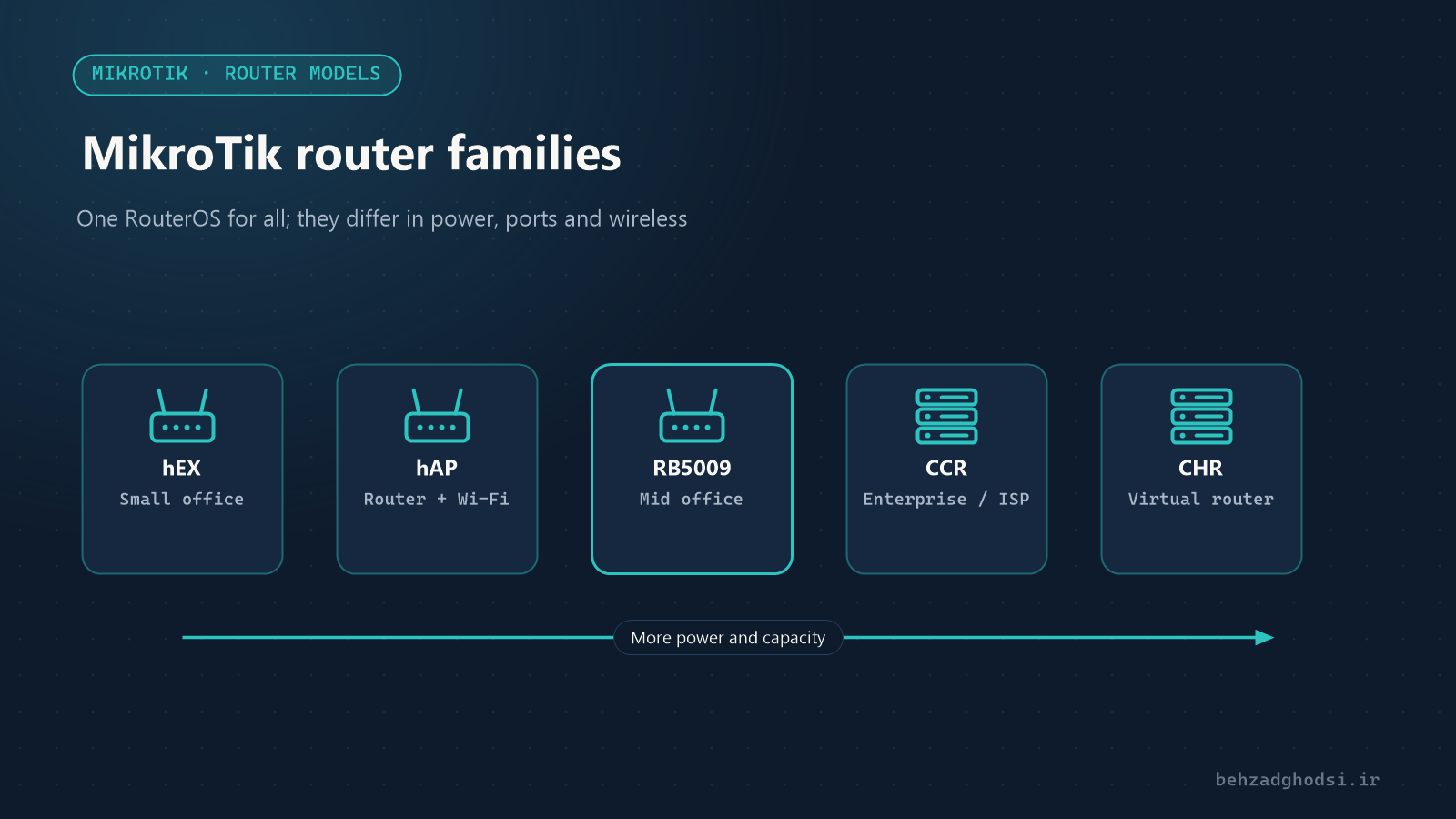
Backup for a full restore on the same device; export for reading, comparing and moving to another device. Take both, encrypt them, automate them and keep them off the router. This is the last part of the MikroTik series; start from MikroTik router families to read it from the beginning.