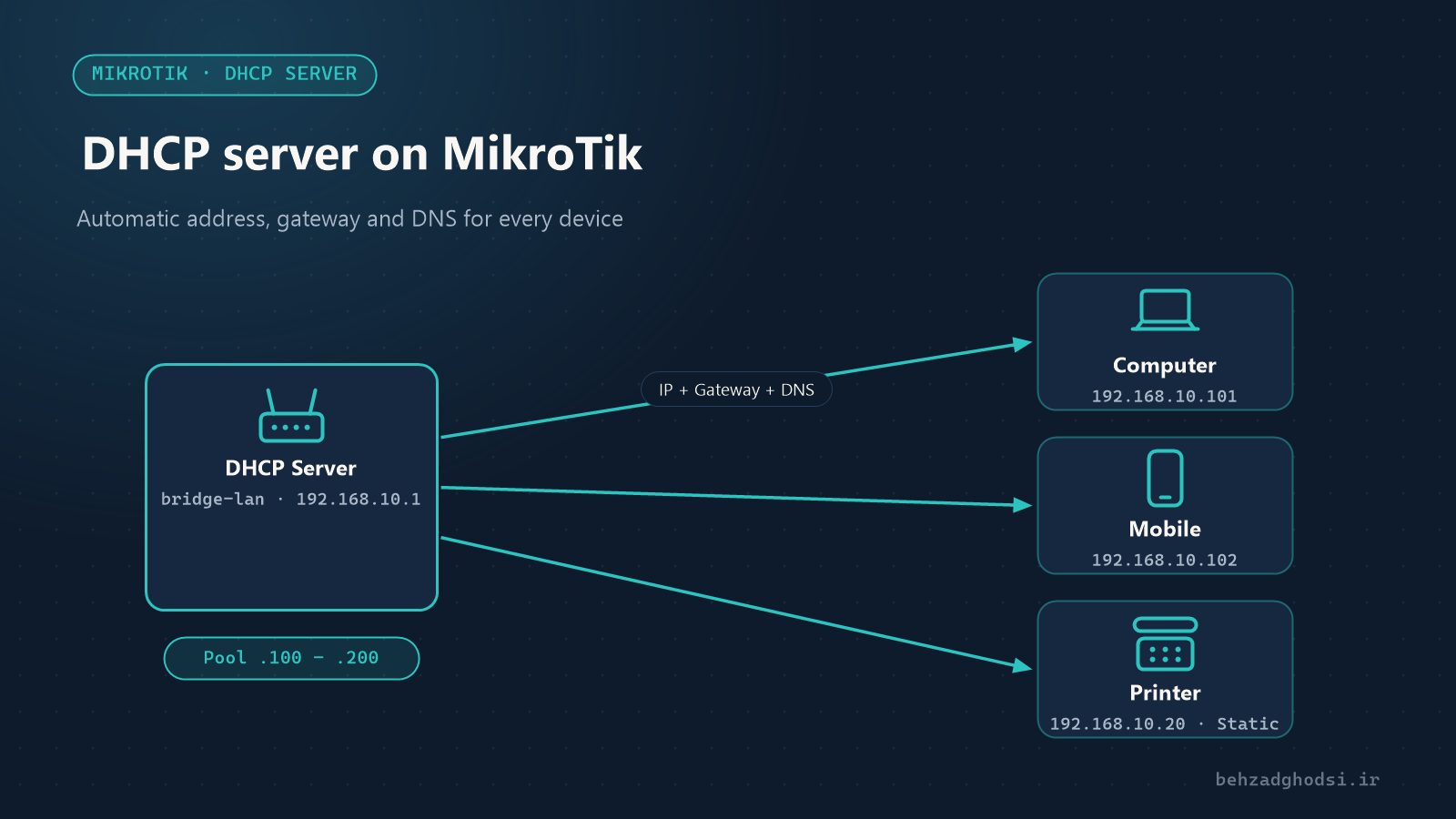
Without DHCP you have to enter the IP address, subnet, gateway and DNS by hand on every device. A DHCP server does it automatically. This article assumes the internal network is on bridge-lan with the address 192.168.10.1/24.
The parts of DHCP on MikroTik
- IP Pool: the range of addresses handed out to devices.
- DHCP Network: the settings sent along with the address: gateway, DNS and domain name.
- DHCP Server: the service that listens on an interface and hands out addresses from the pool.
- Leases: the list of devices that have received an address.
The quick way: DHCP Setup
In Winbox go to IP → DHCP Server and click DHCP Setup. Confirm or adjust the interface (bridge-lan), network, gateway, address range, DNS and lease time in turn. The same from the command line:
/ip dhcp-server setupThe manual way
Knowing the manual method helps you understand what each part does:
/ip pool add name=pool-lan ranges=192.168.10.100-192.168.10.200
/ip dhcp-server network add address=192.168.10.0/24 gateway=192.168.10.1 dns-server=192.168.10.1 domain=office.local
/ip dhcp-server add name=dhcp-lan interface=bridge-lan address-pool=pool-lan lease-time=8h disabled=no- Addresses
.2to.99are kept outside the pool for servers, printers and cameras. - DNS points to the router itself, so the router caches DNS for users (explained in internet set-up).
lease-time=8hsuits office networks. For a busy guest network, a shorter time such as1his better.
Seeing which devices have an address
/ip dhcp-server lease printThe output shows each device’s IP address, MAC address and host name.
Address reservation (static lease)
A printer, time-attendance terminal or camera should always have the same address. Instead of configuring it by hand on the device, reserve the address in DHCP:
/ip dhcp-server lease add address=192.168.10.20 mac-address=AA:BB:CC:DD:EE:FF comment="Printer - Floor 1" server=dhcp-lanOr make a device’s current lease static:
/ip dhcp-server lease make-static [find where host-name="Printer-HP"]In Winbox, right-click the lease and choose Make Static.
DHCP for several VLANs
If the network is split into VLANs, each VLAN needs its own pool, network and DHCP server. For example, for guest VLAN 30:
/interface vlan add name=vlan30-guest vlan-id=30 interface=bridge-lan
/ip address add address=192.168.30.1/24 interface=vlan30-guest
/ip pool add name=pool-guest ranges=192.168.30.10-192.168.30.250
/ip dhcp-server network add address=192.168.30.0/24 gateway=192.168.30.1 dns-server=192.168.30.1
/ip dhcp-server add name=dhcp-guest interface=vlan30-guest address-pool=pool-guest lease-time=1h disabled=no
Sending extra settings (DHCP options)
Some devices, such as IP phones, get their settings from DHCP, for example the TFTP server address for downloading their configuration (option 66):
/ip dhcp-server option add name=tftp-server code=66 value="'192.168.10.5'"
/ip dhcp-server network set [find address=192.168.10.0/24] dhcp-option=tftp-server
Troubleshooting
- Devices get no address: is the DHCP server defined on the right interface (the bridge, not individual ports)? Is it
disabled? - The pool is full: check the leases; enlarge the range or shorten the lease time.
- Devices get strange addresses: another DHCP server, such as a home modem or router, is probably active on the network. On MikroTik, use Alerts (in the DHCP Server menu) to detect unknown DHCP servers.
- They have an address but no internet: check the gateway and DNS in the DHCP network.
The MikroTik DHCP server works with three parts: pool, network and server. Keep fixed addresses outside the pool or reserve them with static leases, create a separate server for each VLAN and watch out for unwanted DHCP servers on the network. Next: NAT types on MikroTik.