“The network is slow” is something every network administrator hears every week. The problem is that slowness is a symptom, not a cause: it could be a cable, a switch, the internet, a server or even the application itself. Proper troubleshooting means stop guessing and narrow the problem down step by step.
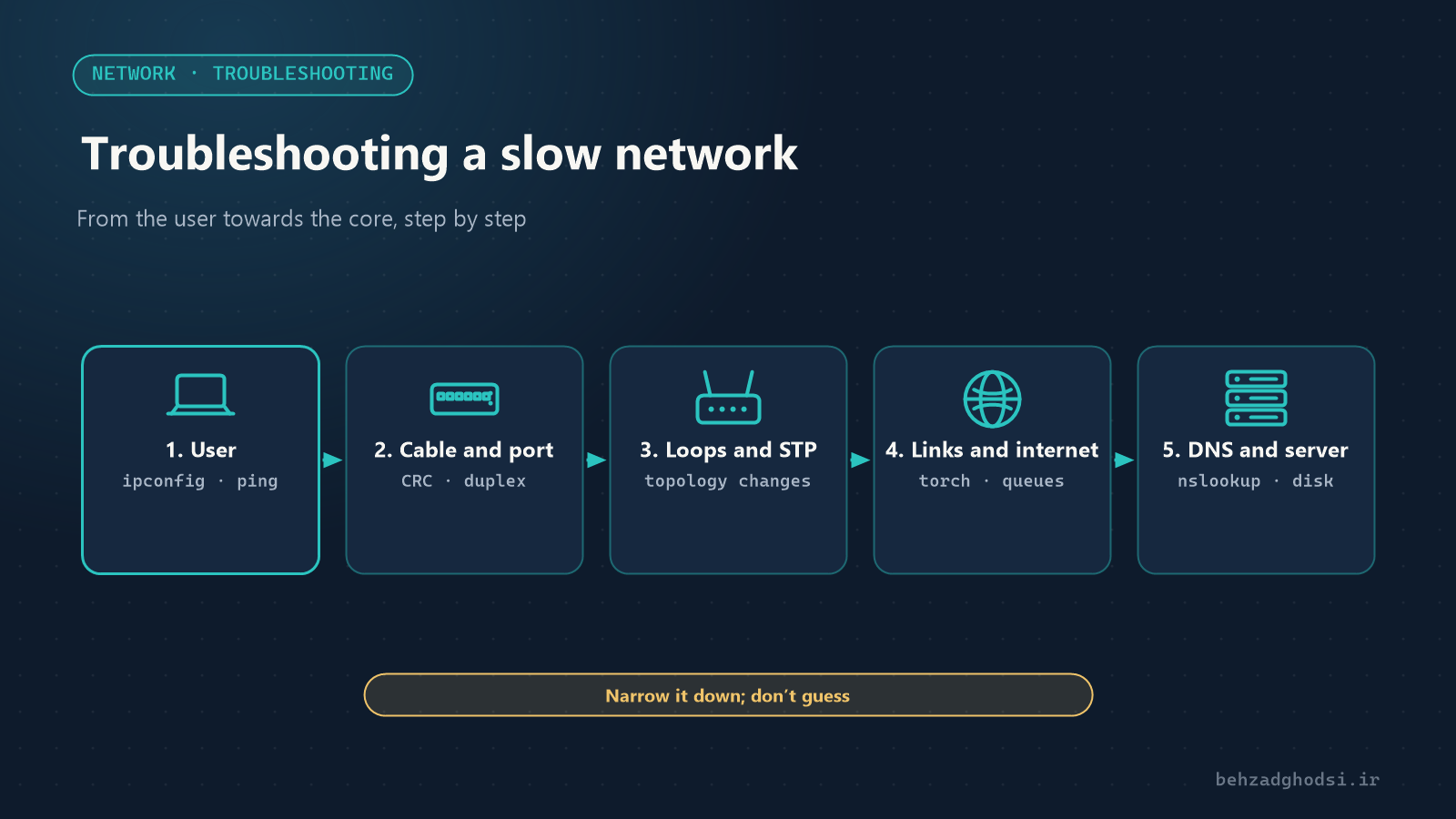
Step 1: pin down what “slow” means
Before anything else, ask these questions:
- Who? One person, one department or everyone?
- What? Everything, or only the internet, or only one application (for example the accounting software)?
- When? All the time, or at a particular time of day? When did it start, and what changed that day?
If only one person has the problem, do not go after the network core; if everyone does, do not swap out one user’s computer.
Step 2: start with the user
On the user’s computer (Windows):
ipconfig /all
ping -n 50 192.168.10.1
ping -n 50 8.8.8.8
tracert 8.8.8.8- Are the IP address and gateway correct?
- Ping to the gateway should be under 2 ms with no packet loss. If even the ping to the gateway is bad, the problem is in the internal network, not the internet.
- Check the network card speed: a card connected at 100 Mbps or half-duplex usually points to a bad cable or port.
Step 3: the physical layer
More often than you would think, the problem is a cable, a connector or a patch cord. On a Cisco switch:
show interfaces status
show interfaces GigabitEthernet1/0/5
show interfaces counters errors- Rising CRC and input error counters mean a bad cable or connector.
- A port stuck at half-duplex or 100 Mbps points to a mismatch or a faulty cable.
Step 4: loops and broadcast storms
If the whole network suddenly slows down and every switch port LED is flashing fast, you probably have a loop; for example someone plugged both ends of one cable into two switch ports, or a small switch under a desk was connected to the network twice.
show spanning-tree summary
show spanning-tree detail | include changes|from
show processes cpu sorted
A large number of topology changes and high switch CPU are signs of a loop. Prevention: Spanning Tree enabled and BPDU Guard on user ports. See the right network structure in Enterprise network design.
Step 5: saturated links
A link running at full capacity slows down all the traffic behind it. Usually it is the internet link or the switch uplinks. On MikroTik, Torch shows who is using the bandwidth:
/tool torch interface=ether1
/interface monitor-traffic ether1
One heavy download, or every computer updating at the same hour, can take the whole company’s internet. The fix: bandwidth sharing (queues) and scheduled updates.
Step 6: DNS and DHCP
Sometimes the network is fine but opening the first page is slow. The cause is usually DNS:
nslookup google.comIf the answer takes several seconds, check the DNS server. If users sometimes get no address, look for a full DHCP pool or an unwanted DHCP server on the network.
Step 7: server and application
If only one application is slow and everything else is fine, the problem is probably not the network: a full or slow server disk, insufficient memory, a heavy database or antivirus scanning the files. Check the server’s resources in Task Manager or Resource Monitor.
Step 8: wireless
Slowness only on Wi-Fi usually comes from channel interference, an overloaded access point or a weak signal. In most cases, lowering the power and planning channels properly helps more than adding access points. See the details in Setting up CAPsMAN on MikroTik.
Prevention
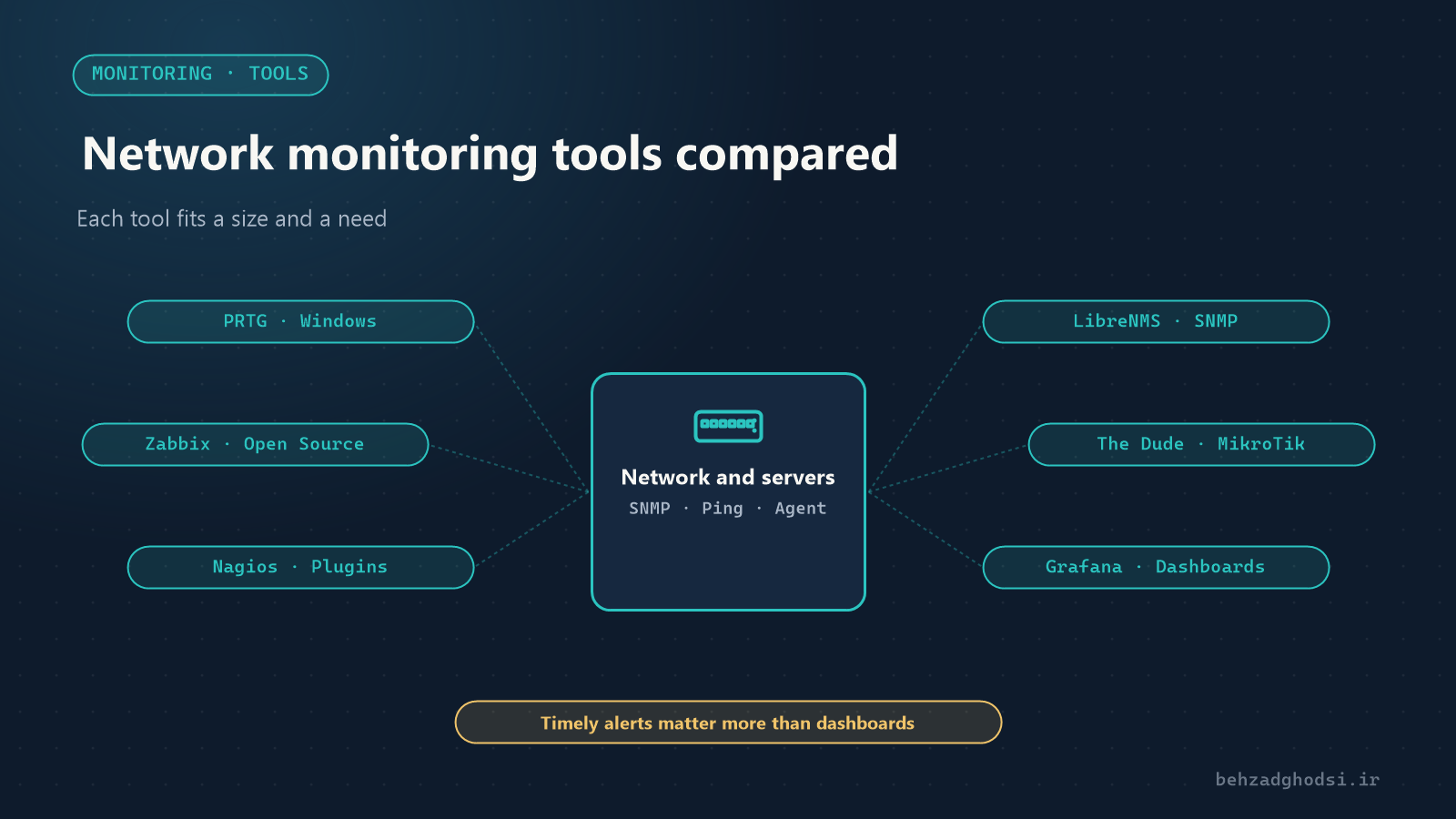
- Continuous monitoring of link bandwidth, port errors and server resources, so problems are seen before users call. Read Network monitoring tools compared.
- An up-to-date network map and documentation.
- A change log; most problems start after a change.
Troubleshooting a slow network means moving methodically from the user towards the core: first define the problem precisely, then the user’s computer, the physical layer, loops, saturated links, DNS, and finally the server and application. With this method you get close to the cause in minutes instead of hours of guessing.
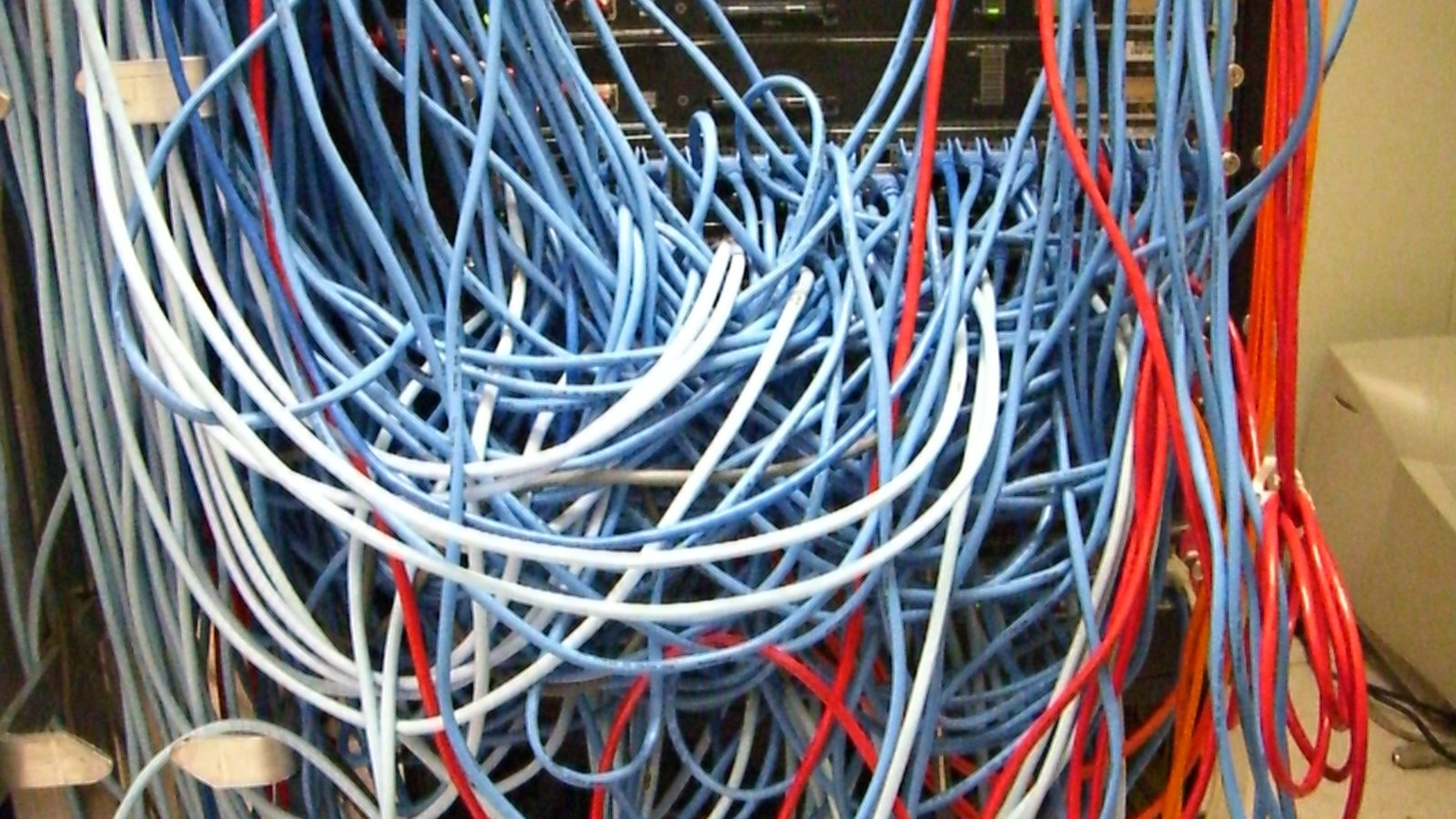
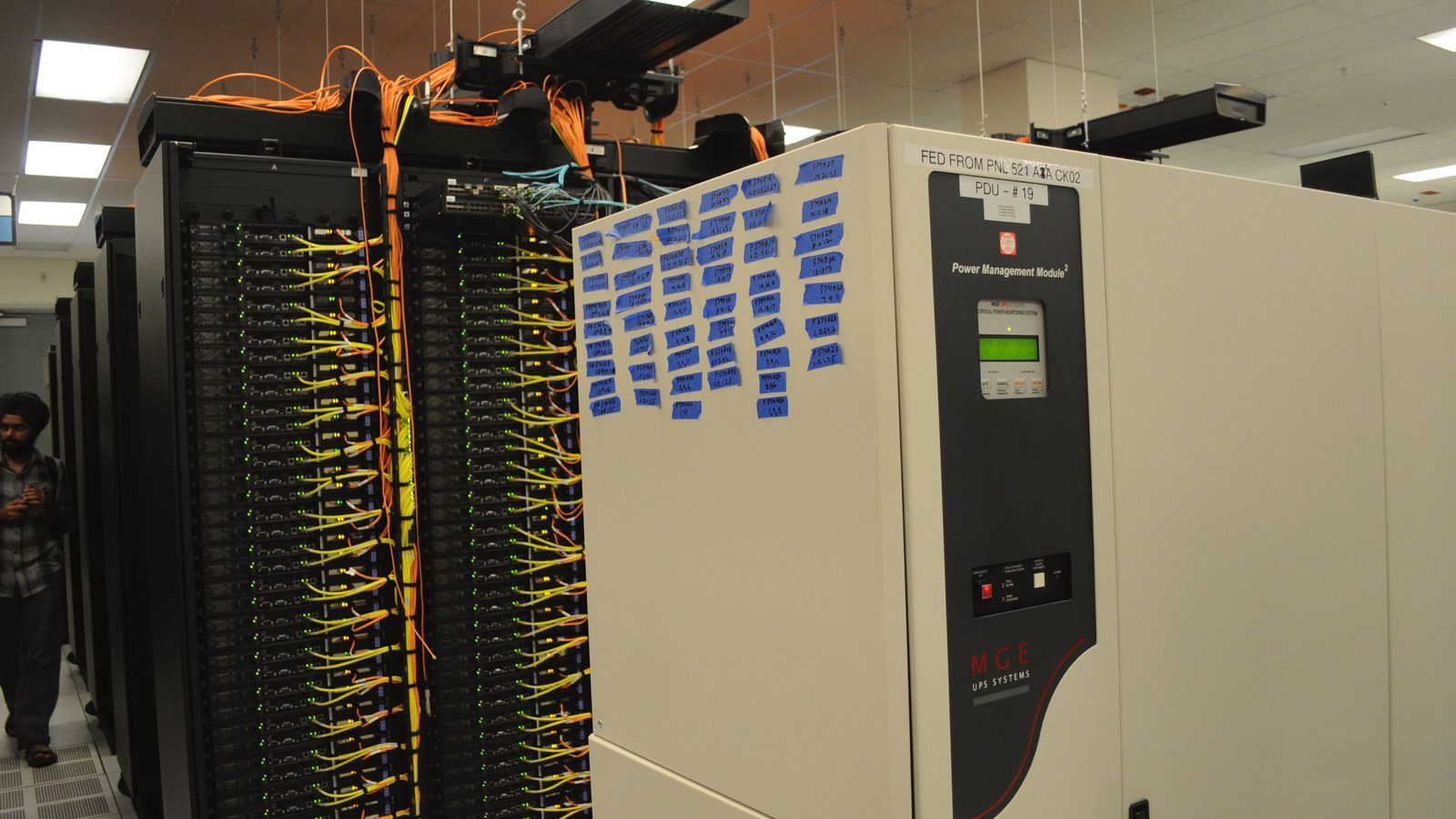
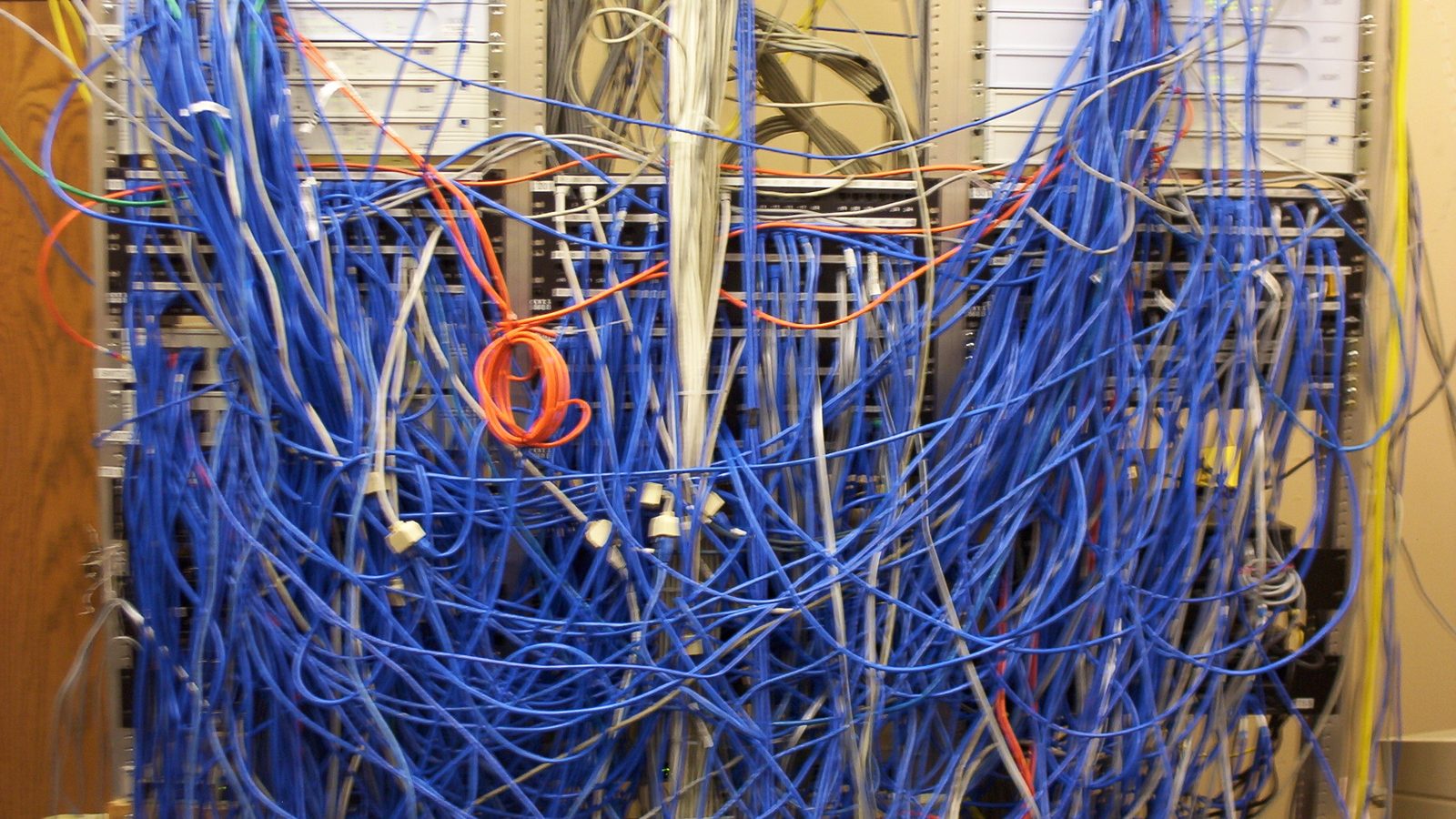
Photo at the top of the article: unknown author, public domain, via Wikimedia Commons; cropped.